
Installation guide for Office 2024 Standard MacOS
Comprehensive guide
Note: No previous Office version or standalone app such as Word, Excel, or Outlook may be installed on your computer. If so, remove them completely and empty the trash afterwards. Only then start the installation and activation, step by step.
First remove all previous Office versions for MacOS. Follow this guide from Microsoft or use this tool that you can download
Download and install the latest version of Office directly from Microsoft: https://go.microsoft.com/fwlink/?linkid=525133 (the downloaded file is called Microsoft Office 365 and Office… This is indeed Office 2024)
Double-click the installation package.
In the installer, click Continue and at the license agreement click Continue again.
Click Agree in the next pop-up window.
Select Install for all users of this computer and click Continue.
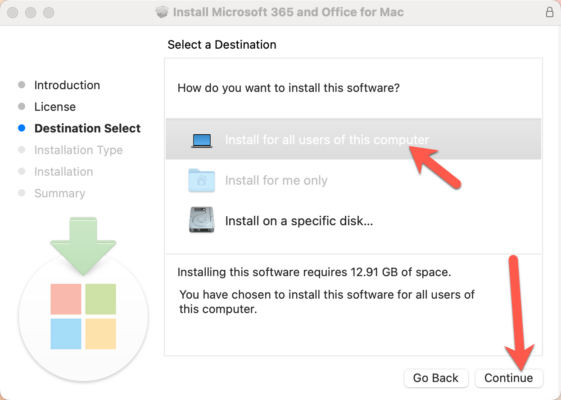
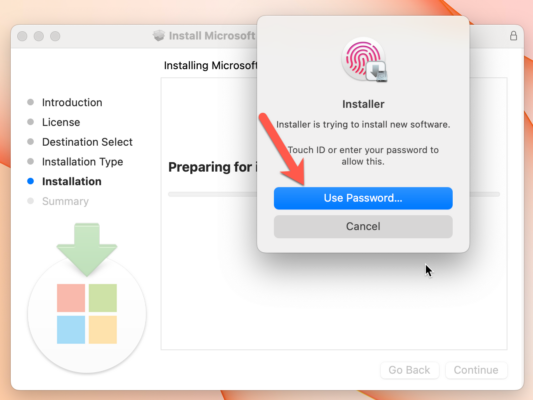
Use your fingerprint or password to approve the installer.
Click OK in the following pop-up window.
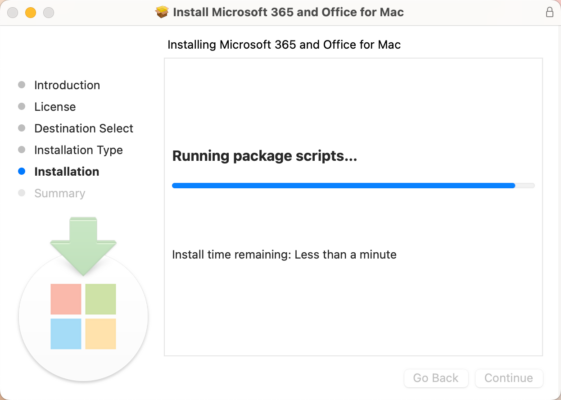
Wait until the installation is complete.
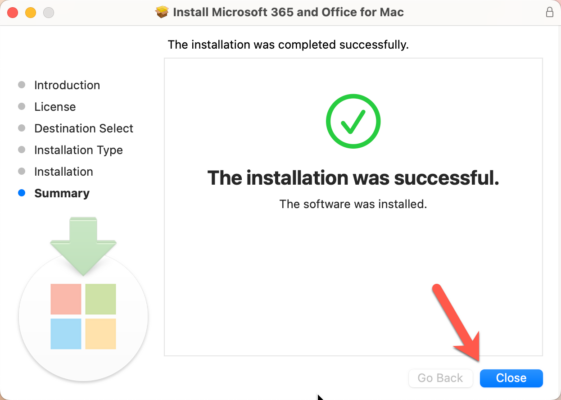
Then click Close.
Click OK to let the installer clean up unnecessary files.
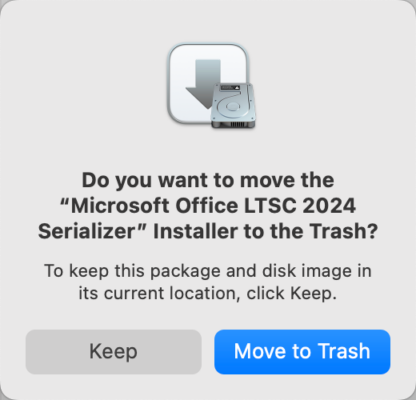
Click Move to Trash to clean up the installation files.
Automatic updates
Is Microsoft Office performing an automatic update? Just let it run.
Click Update and let the process finish.
Close the window once the update is complete.
Error message: Office for MacOS in read-only mode / not activated
If you see this screen, you still need to activate your version of Office 2024 for MacOS.
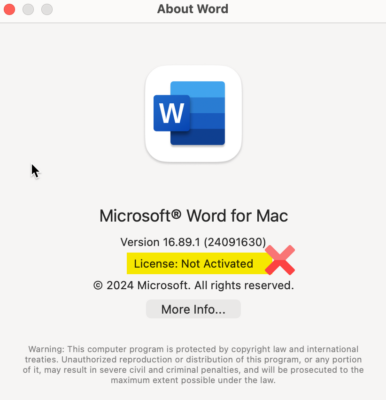
Activate your Microsoft Office 2024
Download and install the Office activator that will activate your Office with your license: https://licentiepromo.be/download/Microsoft_Office_LTSC_2024_VL_Activator.pkg
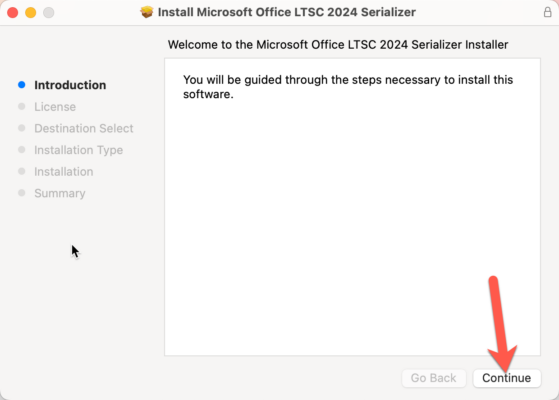
Click Continue to start the installation.
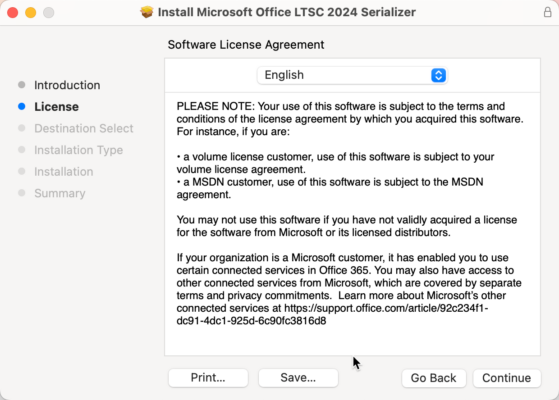
Accept the license terms and click Continue.
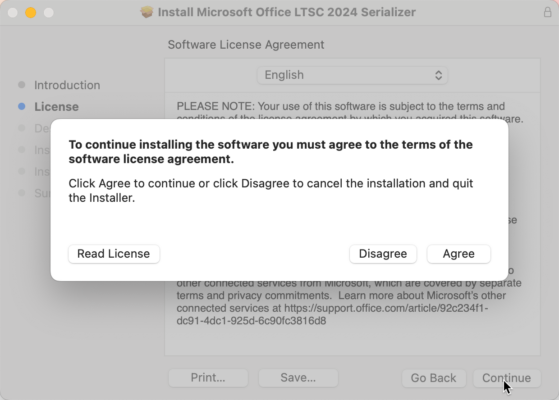
Click Agree to accept the terms.
Select Install for all users of this computer and click Continue.
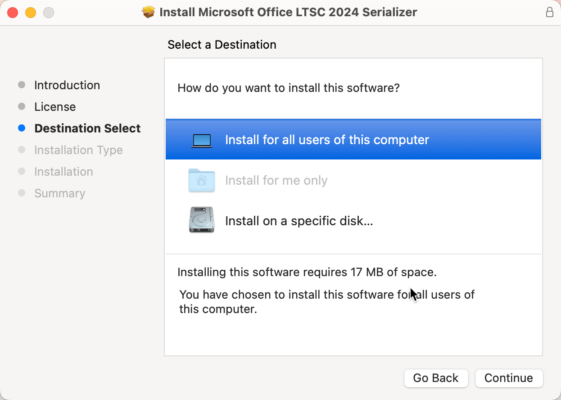
Click Install.
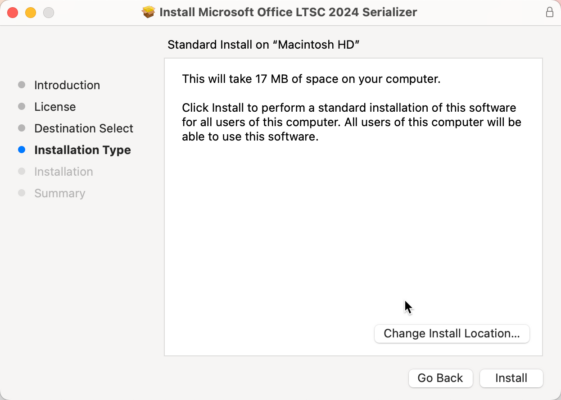
Wait until the installation is complete.
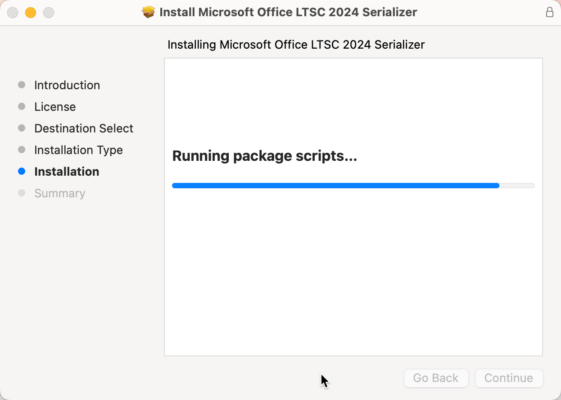
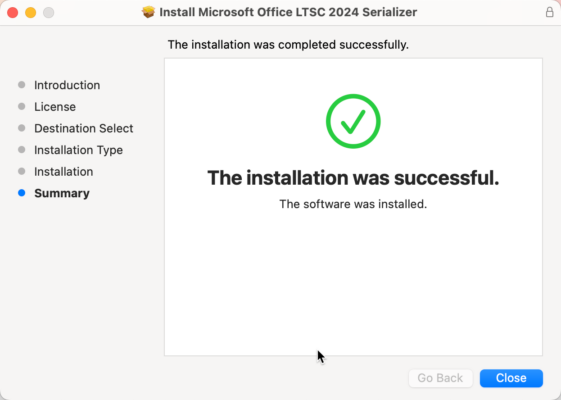
Click Close once the Serializer is installed.
Click OK to clean up the installation files.
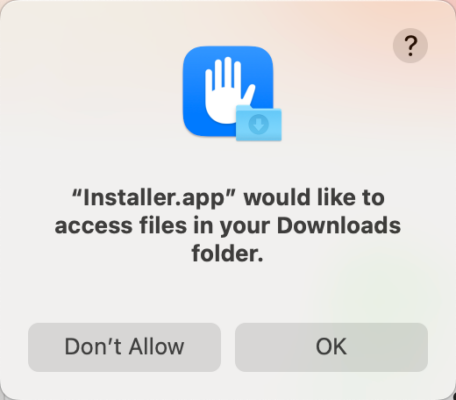
Click Move to Trash.
Using Microsoft Office 2024
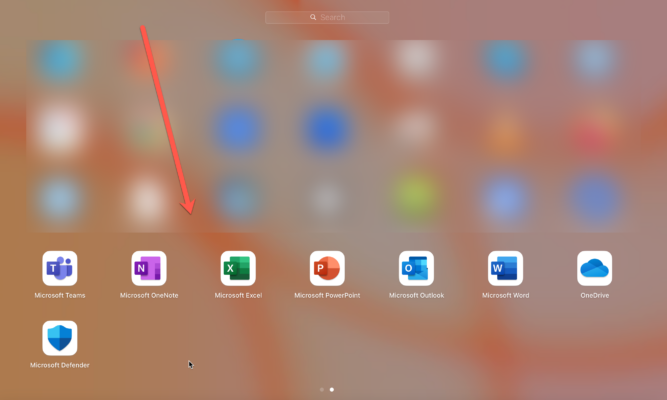
You can find the Microsoft Office apps in Launchpad / Mission Control, or you can find them via Finder in “All Apps”
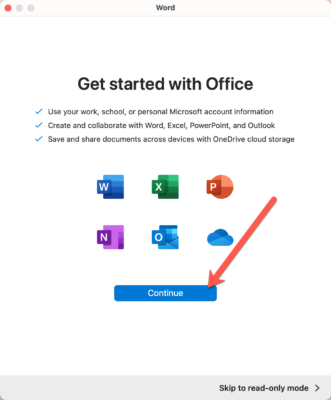
When you open an Office app for the first time, you will see this welcome screen. Click Continue.
Click Next at the privacy notice.
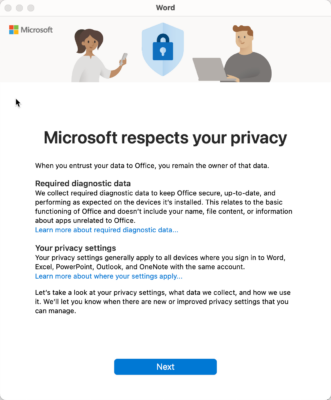
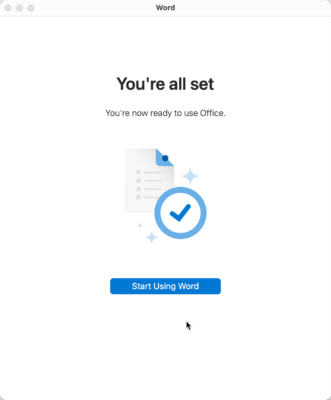
Select No, don't send optional data, click Accept and then Done.
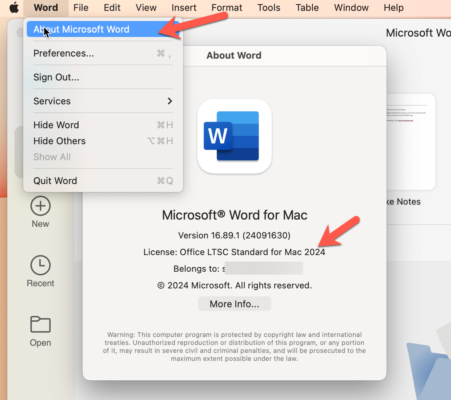
To check your activation status, go to Word > About Microsoft Word. The pop-up window should show:
License: Office LTSC Standard for Mac 2024
Congratulations, enjoy your new Microsoft Office 2024 for MacOS!