General questions

At Licentiepromo, we understand that you might be hesitant to use our service. How is it possible that we can offer you the latest Office and Windows packages at such low prices? This must be some kind of scam, right? Not at all. We can offer you these prices thanks to a sophisticated purchasing strategy by our buyers who operate worldwide. 

We purchase large volumes of licenses for all Microsoft (and some other) products worldwide (China, America, the Eastern Bloc, and Europe) from companies with overstock or unused licenses in order to obtain the lowest possible price. We also buy licenses that are no longer in use from bankrupt companies. We also have minimal overhead costs, such as no operational costs for a physical store, and we handle everything digitally.

By handling large volumes in both purchase and sale, we can also keep our margins very low for the benefit of the consumer.

Merchants who have an agreement with Microsoft are required to adhere to fixed prices. We do not do this and do not have a contract with Microsoft. That is why we are able to stay below the fixed prices.

All licenses are 100% legal, and you can read why in the following section. We have been in business for over 8 years and supply high-quality license keys with a guarantee. Our keys are NEVER resold more than once, and every customer receives an activation confirmation from Microsoft on their key, meaning you can also count on Microsoft's official support channels and all associated updates. Contrary to what many believe, these are full-fledged Retail licenses, identical to those you purchase from Microsoft, and are suitable for private individuals, SMEs, and large companies alike.

Be sure to read the experiences and reviews of more than 14,000 customers online who have purchased from us.

Of course ! The licenses sold are fully legal and working. We encourage all our customers to register their email address and register their specific Microsoft Office product key via Microsoft Online Activation to ensure verification and tracking of their authentic software products.

Most of our licenses are new, but also pre-owned (It is a key / license that has previously activated a software package. For example, on a laptop. When this software is replaced or the laptop is replaced, the installed software is no longer used. The license can therefore be used again.) We always guarantee the functionality of our key activations!

European case law regarding used software

European legislation leaves no doubt: the resale of used software licenses and activation keys is permitted. In a landmark ruling, the European Court of Justice held that the software producer's distribution right lapses as soon as a license has been lawfully placed into circulation within the European Economic Area. This principle applies to software on physical media as well as to software delivered digitally. Therefore, anyone who has purchased a permanent license may resell it.

National case law confirms this position

National courts have also confirmed this European line. In Germany, several judicial bodies have ruled that used software licenses may be legally resold, including volume licenses. Attempts by software producers to stop this trade have been rejected by the courts. Consequently, the legality of the secondary software market has been clearly established at the national level as well.

Splitting volume licenses is permitted

It is not only individual licenses that may be resold. Volume licenses—originally purchased as a bundle—can also be split under European regulations. The individual licenses may subsequently be offered separately, provided that the applicable conditions are met. In various countries, this practice is explicitly legally recognized and is generally accepted within the European market.

What does this mean for you specifically?

At Licentiepromo, you can purchase used software licenses and product keys without legal risk. All products offered comply with the following basic principles:

  • The software was originally marketed within the EEA by the rights holder.

  • This concerns a permanent license, without time limit.

  • The previous owner shut down his installation upon resale.

  • The transfer takes place in accordance with the applicable license terms.

What do you receive with your purchase?

With every purchase of a used software license or product key, you receive:

  • A valid activation key without an expiration date, suitable for online activation.

  • Clear installation instructions via email.

  • A correct invoice with VAT details and license reference.

Licentiepromo supplies exclusively software licenses and product keys. No physical media or certificates of authenticity are included. All keys originate from recognized distribution channels within the European Union.

Transparency and legal certainty

We attach great importance to clarity and compliance with the law. That is why we only sell software licenses that comply with European and national regulations. You are therefore buying with full knowledge and without hidden risks. Questions about the legal background? We will answer them directly.

In summary

The trade in used software licenses and product keys is fully legal within the European Union. Splitting volume licenses also falls within this legal framework. Licentiepromo operates strictly in accordance with these rules, thereby offering a reliable and cost-effective way to purchase software.

Source: 

Case law European Decision 24 April 2012

EUR-Lex – 62011CJ0128 – EN – EUR-Lex

http://curia.europa.eu/juris/document/document.jsf?text=&docid=121981&pageIndex=0&doclang=EN&mode=req&dir=&occ=first&part=1&cid=1437095


You will receive the software via digital download. A digital download is an electronically delivered product that allows you to download and use your new software immediately. This means that a physical CD or DVD is not included with your purchase. The software installer is downloaded via cloud-based storage. You can then easily create a CD or USB installation medium yourself if you wish, but this is not necessary as the download always remains publicly available in your account.

Our retail software licenses are designed to be installed and activated on only one computer, unless otherwise indicated. (We offer promo packs for multiple PCs and users). In the case of the Office license with an account , you can transfer the license to another device; if you wish to install the software on another computer, you must first uninstall it from the installed computer. In the case of the license without an account, it is valid for only 1 PC and cannot be transferred.

As soon as your payment is complete, you can download your software immediately from the order confirmation page. You will also receive a download link by email along with your license code.

The email containing your license codes and links to the software will be sent automatically after your order, so you will receive it in your mailbox within a few moments. The email will be sent to the email address you used to place your order. If you suspect that you have entered an incorrect email address, please contact us as soon as possible via [email protected]

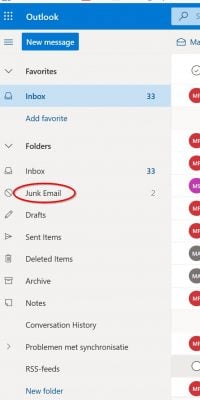
Be sure to also check your spam or junk folder, especially if you have an email address that ends in @hotmail.xxx, @live.xxx, or @outlook.xxx.

You can always contact us via email or our contact form. Our support staff will be happy to handle your question during office hours.

Since we consider the license guarantee a cornerstone of our business operations, you will always be provided with a working license. When you contact us, we will ask about the procedure followed or request screenshots, and we will advise you on the steps to resolve potential issues. If necessary, we will even provide free remote support

Although we will always try to help you with your activation, we refer you to Microsoft for support regarding the software itself.

You can do this online: Contact us – Microsoft Support

Or by phone

Netherlands – +31(0)20-5001500
Belgium – +32 (0)25-033113
France – +33 (0)97-0019090
United Kingdom – +44 (0)344-8002400


Technical questions

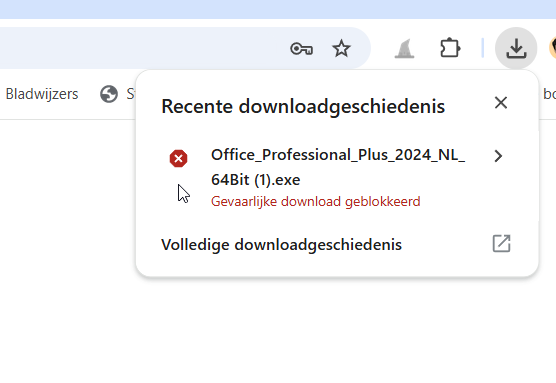
Your download may be blocked when using Chrome:

The cause of this message is the fact that the downloaded file is an executable file (the Office installation). Google Chrome therefore flags it as dangerous. This is standard when Safe Browsing is enabled. The file is indeed executable (otherwise we cannot install Office) but is not dangerous (you can always scan the file with your antivirus software to confirm this).

You can solve this by:

  1. Use Windows Edge as your browser to download it or : 
  2. In Google Chrome, click the three dots in the top right corner and then select Downloads. You will then see a list containing all your downloads, including the failed download of the Office file.
  3. For the failed download, click on the three dots : and select “download dangerous file anyway” (we reiterate that the file is perfectly safe and can be checked for viruses after the download to confirm this)


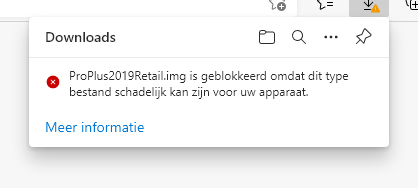
In exceptional cases, your download via the Edge browser may fail and you may receive the following message:

The cause of this notification is Microsoft SmartScreen. This security mechanism in Windows 10/11 warns of unknown software that Microsoft believes may be unsafe. We explain what SmartScreen does, how to enable it, and what to do with SmartScreen warnings.

The file you are downloading is an image of a virtual DVD, and this DVD contains the Office installation file. Smartscreen cannot read this image but correctly states that this image may contain executable files (in this case, the Office installation file). That is why the message reads “MAY be harmful” and not “IS harmful”.

As you can see, this download is directly from the Microsoft servers and over a secure connection, so you don't need to worry about that.

The colleagues at gratissoftware have provided an extensive explanation regarding this on their website and have also described, with a clear manual, how you can adjust this so that the download can proceed without interruption.

https://www.gratissoftwaresite.nl/tips-hulp-hoe-werkt-microsoft-defender-smartscreen-windows-10-bescherming-downloads-sites


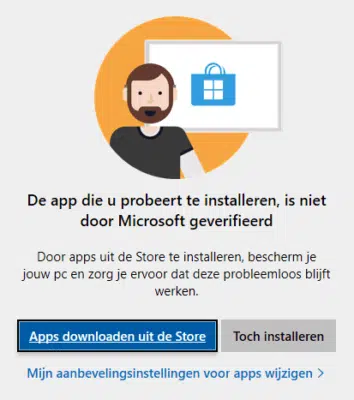
The app you are trying to install has not been verified by Microsoft.

This window is displayed to encourage (or even require) the user to install only Microsoft-verified apps via the Store. You can simply disable this by adjusting the recommendation settings. Our colleagues at schoonepc.nl have written a simple guide and explanation for this: Q&A: Non-Microsoft verified apps (schoonepc.nl)


You cannot install because your version of Windows 10 or 11 is version 10S or 11S (note the S). This version of Windows also only allows you to install applications from the Microsoft Store. You can easily disable this S version by following these instructions from Microsoft: Disable S mode in Windows – Microsoft Support


Licentiepromo sometimes sells pre-owned licenses. This means that we sell licenses that were previously activated but are no longer active due to hardware replacement or company failure. These licenses are then reactivated. It is possible that reactivation via the internet was unsuccessful. In that case, these licenses will still work through reactivation by phone. Select “Telephone activation” and follow the procedure.

We provide a 100% license guarantee within the 30-day activation period. We guarantee that if you purchase a license from us, you will receive an optimally functioning license.

In the meantime, you can always download a fully functional trial version of the software product of your choice via our download page.

Licentiepromo sometimes sells pre-owned licenses. This means that we sell licenses that were previously activated but are no longer active due to hardware replacement or company failure. These licenses are then reactivated. It is possible that reactivation via the internet was unsuccessful. In that case, these licenses will still work through reactivation by phone. Select “Telephone activation” and follow the procedure.

—————-

You then select the free number for your country from the selection list and contact Microsoft. A computer voice will guide you. You enter your code, which will be displayed on your screen, and the computer voice will provide you with a confirmation code that you must enter yourself to activate your software.

————–

Licentiepromo sometimes sells pre-owned licenses. This means that we sell licenses that were previously activated but are no longer active due to hardware replacement or company failure. These licenses are then reactivated. It is possible that reactivation via the internet was unsuccessful. In that case, these licenses will still work through reactivation by phone. Select “Telephone activation” and follow the procedure.

—————-

If you are sitting at the computer, you can right-click the start button in the bottom left corner, and then click Run.

In the command window, type: SLUI 4 and press Enter.
Then select the country and click Next.

You will then see the installation ID at the bottom of the screen. You can use the website below to enter the ID.

You can select 7 Digits and then enter the installation ID visible on the computer. After entering it, click Next.

If all goes well, he will now ask on how many computers Windows is installed. Enter 0 here.

If you click Next again, you will see the confirmation ID. You can enter the confirmation ID on the computer after clicking Enter confirmation ID.

If this does not work, you can also call your country's number to activate Windows.

————–

Upgrading from Windows 10 or 11 Home to Windows 10 Pro or Windows 11 Pro is usually straightforward.

If you enter the purchased license key into Windows 10 or 11 Home, it will automatically upgrade to the Windows 10 Pro or Windows 11 Pro version

In Windows 10, go to Settings – Update & Security – Activation.
In Windows 11 , go to Settings – System – Activation – Perform upgrade.

Sometimes, however, this will not be possible.

Possible causes:

Your third-party antivirus/firewall is blocking the update: remove or stop the antivirus. Enter your code, let Windows update, and reactivate your antivirus

Another possible cause is that the activation servers are unreachable.

Then the following solution is possible to upgrade your Windows with the license code:

Press the following keys: Windows logo key + R

You get a screen like this and you type 'cmd.exe'

Run Dialog With cmd.exe Text In It

Press the keys Ctrl+Shift+Enter

You will receive a message and click yes here.

You will now see a command screen as an administrator.

Now type (or copy) the following commands to activate your Windows.

slmgr /ipk xxxx-xxxx-xxxx-xxxx-xxxx (type the key you received from us here)

slmgr /ato

After that, your upgrade to Windows 10 or 11 Pro will start

Most problems during the installation or activation of Office are caused by the fact that an old or different Office version is still present on your system. For example, a new laptop may still have a trial version of Office 365 installed that conflicts with newer versions.

Examples of errors:

  • For example, you receive error message Error code 30182-1 (2)
  • Office only wants to install 32-bit and gives you a message
  • Your office requires an email address for activation
  • You are unable to activate Office or the key appears to be incorrect.

All these errors can be resolved by removing old or other Office versions.

You can read how to do that here:

https://support.office.com/nl-nl/article/office-verwijderen-van-een-pc-9dd49b83-264a-477a-8fcc-2fdf5dbf61d8

If you want to check if you are working with the correct Office version, go to File – Account, and in the right-hand column you will see your version of Office and the activation.

If you have a license with an account, you can always reinstall via https://account.microsoft.com/services


This means that there are still small remnants of your previous Office application. You can easily solve this:

Close all your Office applications.

Go to c:program dataMicrosoftofficelicences in Explorer and delete all files located in this directory

(You may have the Program Data folder hidden. If so, click "View" at the top of your Explorer and then "Show hidden items") 

Restart Word: you will be asked to log in or you can choose to enter the product key. Do not log in, but re-enter the key, and your authentication should normally be displayed correctly as Office 2024.

If this does not work, please contact us.

Licenses for Mac are always installed via https://setup.office.com, where you will link your license key to your account and can download your software.

After this, you will no longer be able to use the license key. Please then visit https://account.microsoft.com/services and log in with the same account you used during the initial installation.

Do you see your license listed there? If so, everything is in order. If not, you must ensure that you are logging in with the correct account (caution! The same email address can be either a Private or a Business/IT account).

To activate, you must ensure that you are logged into your local Office with the same account you used to log in on the previous page.

If you are having trouble activating on your MacBook itself, these tips might help:

What you can try if you cannot install or activate Office for Mac – Microsoft Support

Microsoft 365 Apps activation error Your account does not allow editing on a Mac – Microsoft 365 Apps | Microsoft Learn

Troubleshoot Office for Mac issues by completely removing the program before reinstalling it – Microsoft Support

A common problem on a Mac is that your account is not recognized, but you can solve it easily.

Follow this link and use tip 3 (create an alias). This will solve your problem.

https://answers.microsoft.com/nl-nl/msoffice/forum/all/gebruikersnaam-wordt-niet-herkend-bij-installatie/796eb4d7-ca51-4b48-8214-c4d3e9164cca

Do you have any other problems? Then be sure to contact us.


For Windows :

After entering your license key and activation, your Windows is automatically linked to your computer's MAC address. Microsoft creates a profile of your device. Based on this data, during a new installation, it is checked whether your device was previously equipped with an activated version of Windows 10/11. You can then reinstall it as many times as you wish on the same computer. You cannot use the license key on another PC.

For Office :

This depends on the type of license. Check the product description to see if the product is suitable for installation via an account, is only valid for 1 PC, or if the installation is valid.

You create an Office account via https://setup.office.com and enter your license key. After this, your product will always be present in your Microsoft Account. You can check this by going to https://account.microsoft.com/ and clicking on 'Services and Subscriptions' in the menu at the top; you will then find your product and can reinstall it. Please note that only one installation is possible, so you must first remove your installation on the other computer.

Please note: your original license key will no longer work if it is linked to your Microsoft Account and Microsoft will not allow second use. You must therefore use your account for the reinstallation.

Please note: if you have not created a Microsoft Account or have purchased a license without an account, you cannot reuse your license key to reinstall or activate!

Downgrading Windows 10 Enterprise to Pro? We'd be happy to explain.

Preparation:

To successfully perform this downgrade, it is wise to check everything.
And, of course, to make a backup beforehand.

You need this:

Do you have everything? Great, then we can get started!

Method 1 Downgrade Windows 10 Enterprise using a temporary key:

This method is our favorite. Because it is easy to perform and you don't need to be a specialist for it. Enough talking, let's get started.

For this method to succeed, you need a Windows 10 Pro bridge code.

That is this code: Windows 10 Pro code: VK7JG-NPHTM-C97JM-9MPGT-3V66T

  1.  In Windows 10 Enterprise, navigate to: Settings > Updates and security > Activation
  2. In the activation window, click the change product code
  3. Enter the bridging code here: VK7JG-NPHTM-C97JM-9MPGT-3V66T
  4. click next and complete the process

If everything worked, you have now successfully downgraded your Windows 10 Enterprise to Windows 10 Pro. 

Then follow the following steps now:

  1.  In Windows 10 Enterprise, navigate to: Settings > Updates and security > Activation
  2. In the activation window, click the change product code
  3. Enter your Windows 10 Pro product code
  4. Click on next and you are done 

How do you remove the product key from an Office product?

Sometimes you find yourself in a situation where you want to remove an Office product key without uninstalling the entire Office program. Or you simply want to remove/change a product key.

With the method below, this is certainly possible. However, I would like to point out the following: Please note that these steps are not for beginners and require some technical knowledge or insight. Everything is entirely at your own risk, and we cannot provide any support with this.

That being said, let's get started right away.

Step 1: Open the command prompt and run the control script

  • Open command prompt as administrator (start, type cm and then right-click, run as administrator).
  • If cmd is open, you can run the script below to check which product keys are installed on your system

cscript “%ProgramFiles%Microsoft OfficeOffice16ospp.vbs” /dstatus

If you have installed a 64-bit version of Office, you will receive an error message.

No worries, then use this script:

cscript “%ProgramFiles(x86)%Microsoft OfficeOffice16ospp.vbs” /dstatus

A small note: you see Office16 in this example. That stands for Office 2016/2019. If you have an older version, choose Office 2013 Office15, and for Office 2010 Office 14

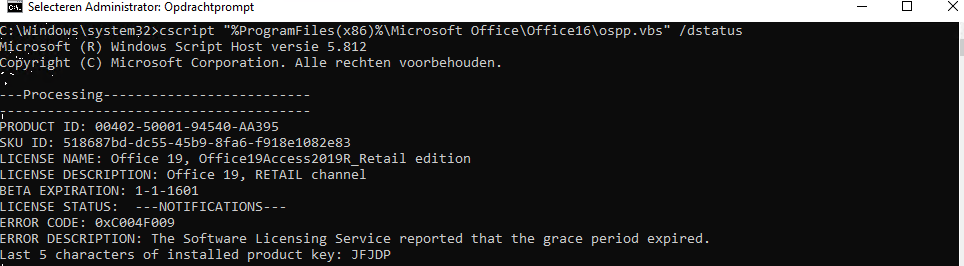
You will then get a screen like this:

Image_2020-09-22_at_12.10.21_AM.png

important to note that in your situation, multiple codes may be installed (for the same product). Only note down the last 5 characters that you WANT to remove. It is possible, therefore, that you Office 2019 installed, but that multiple codes are present. Or another Office product, of course.

Step 2: Actually removing the product code

Do you have the last 5 characters? Then we can actually remove the code now

We do this with the script below:

cscript “%ProgramFiles%Microsoft OfficeOffice16ospp.vbs” /unpkey:xxxxx   

Or if you receive an error message:

cscript “%ProgramFiles(x86)%Microsoft OfficeOffice16ospp.vbs” /unpkey:xxxxx

Naturally, the xxxxx are the last 5 characters of the product code you want to remove.

As in our case: cscript “%ProgramFiles(x86)%Microsoft OfficeOffice16ospp.vbs” /unpkey:jfjdp

Step 3: So Microsoft always keeps rebooting just to be sure

Yes, the title pretty much says it all: always reboot. I received this tip when a Microsoft employee, after hours of searching, still hadn't managed to remove a product key from the system.

And that was basically it.

Briefly summarized:

  • Open cmd(command prompt) as administrator
  • Run the script to check which codes are on your system.
  • Verify if the last 5 characters match the code you want to remove
  • Run the script to remove the code and you're done.

How do you install Project Professional 2021?

There are various methods for this, but we make it as easy as possible for you.

If you bought this from us, first of all I would like to congratulate you on your purchase!

Preparation – what do you need?

  • product code for Project Professional 2021
  • A product code for Visio Professional 2021
  • A system equipped with Windows 10 or Windows 11, or Server 2019 or Server 2022.This is mandatory! Visio or Project does not work on Mac.
  • And at least 20 GB of hard drive space ( Approximately 4 GB for installation file + 4 GB for the installation)
  • A stable internet connection
  • Please note: Project or Visio Professional 2021 works fine standalone. Do you want to use Project Professional 2021 with Office? Then you need an Office 2021 suite or Office 365! Visio and Project are part of the Office suite and must have the same version. Think of Office 2021 Professional Plus or Office 365.

The installation itself – the real work

  • Download Project Professional 2021 or Visio Professional 2021. You can do this via our download page.
  • Once the download is complete, open it – Windows 10/11 can automatically open/mount/link it.
  • Next, click on setup to start the installation (this automatically chooses which version, 32 or 64 bits). You can change this by making a choice yourself in the installation folder to run the setup.
  • Follow the installation instructions on the screen
  • This takes approximately 5-25 minutes, depending on how fast your system is

The activation – Show that you have a valid product code

  • Start Project professional 2021
  • You will now be asked to enter your product code. Please enter it.
  • It will be activated online and you are ready

We hope this guide helps you install and activate Project Professional 2021 or Visio Professional 2021

If you can't figure it out, a link doesn't work, or you have another question?

In that case, always contact our customer service.

These instructions are intended for Licentiepromo customers who have purchased a Windows 11 code. No Windows 11 code? Then you can buy one from us at a low price . And you will have it immediately. We currently have Windows 11 Home and Windows 11 Pro.

Now that you have received the product code (you can find your product code in the order confirmation and in the license email), you might be wondering how to get started? We would be happy to explain.

First and foremost, it is important to choose between an upgrade or a clean installation:

The difference between a clean installation of Windows 11 and an upgrade from a previous version of Windows (such as Windows 10 to Windows 11) lies in the process and the outcome for the operating system and the data on your computer.

Clean Installation

What it is: A clean installation means Windows 11 on an empty disk or after formatting the disk. This process removes all existing files, settings, and programs.

Advantages:

  • Improved performance: By removing old files, programs, and residual software from previous installations, your system can run faster and more efficiently.
  • Fewer software conflicts: A clean slate means there is less chance of conflicts between software or with old drivers.
  • Cleaned-up storage space: All old files and unused programs are removed, freeing up more space on your hard drive.
  • New start: Ideal for when you experience system problems or simply want a fresh start with your computer.
  • The option to choose your own version (Home or Pro). With an upgrade, you will always have the same version as the system you are upgrading.

Upgrade

What it is: An upgrade means updating your existing Windows installation to Windows 11, while retaining your files, settings, and programs.

Advantages:

  • Convenience: The process is simpler and faster than a clean installation because your existing data and programs are retained.
  • No reinstallation needed: You do not need to reinstall your programs or reorganize your files, which can save a lot of time.
  • Data retention: Important files, settings, and programs are transferred to the new installation, allowing you to pick up exactly where you left off immediately after the upgrade.

Conclusion

The choice between a clean installation and an upgrade depends on your specific needs and situation. A clean installation is ideal for maximizing system performance and resolving existing issues, but requires more time and effort because you have to set everything up and reinstall everything. An upgrade is more convenient and faster if you are satisfied with your current system configuration and want to keep your files, settings, and programs.

Preparation:

To properly perform a clean installation of Windows 11 or an upgrade to Windows 11, you need the following

  • A (fast) internet connection (provider costs may apply if you have a limit). If you have a limit, you are aware of this.
  • Sufficient storage capacity on the system
  • A USB stick with at least 8GB of storage capacity. Important: make a backup of your data, because all data will be erased when creating a Windows 10 bootable stick (which you are going to create).
  • A Windows 11 product key. For example, Windows 11 Home or Windows 11 Pro
  • PLEASE NOTE: Check carefully beforehand whether your system meets all system requirements. You can do this by running the PC Health app and carefully reading the system specifications

Everything complete? Great, then let's get started!

  1. Download the Microsoft Media Creation Tool
  2. When you open the media creation tool, you will see a screen where you can agree or disagree to determine the license. Click on agree.
  3. Next, you will be given the choice to update this PC or create an installation for another PC. You choose the option to create installation media for another PC if you want to perform a clean installation, or you choose upgrade if you want to start the Windows 11 upgrade immediately.
  4. You can select the language on this screen. Please note: 64-bit is required for Windows 11.
  5. You are now being asked which medium you want to use. I recommend choosing the USB flash drive option.
  6. Now you have the option to select your USB stick. Make sure you select your USB stick and not a partition!
  7. The installation media is now being downloaded and installed on the USB stick
  8. Now that the stick is ready, insert it into the system you want to reinstall.

Tip: First, configure everything correctly in the BIOS. Modern motherboards have a Windows 10/11 mode. Also check the boot order.

To start the installation itself, most motherboards have the option to select a boot device. Sometimes this is the F9 key, F11, or F12. Do you want to be sure? Then check the system/motherboard manual.

The installation will now start. Now follow the steps indicated by Windows.

If your system does not meet the system requirements and you cannot Windows 11 , there are a number of ways to bypass this: Installing Windows 11 on an old PC? Here's how to do it! (ct.nl)


Any questions? Please contact us