
Installation guide Microsoft Windows 11 Professional
Contents
- Download
- System requirements
- License and activation
- Upgrading from Windows 11 Home to Windows 11 Pro
- Upgrading from Windows 10 Pro to Windows 11 Pro
- Clean installation
- Downloads in other languages
- Video
- Note
Download
Microsoft Windows 11 Pro
Download the desired version via the download link below:
(Make sure your device has more than 8 GB of RAM and runs a 64-bit version.)
System requirements
Read this carefully
These are the minimum system requirements to install Microsoft Windows 11 on a PC. If your device does not meet these, you may not be able to install Windows 11 .
You can download the PC Health Check app. It will tell you if your device supports Windows 11 .
| Processor | 1 gigahertz (GHz) or faster, with 2 or more cores on a compatible 64-bit processor or System on a Chip (SoC). |
| RAM | 4 gigabytes (GB). |
| Storage | Storage device of 64 GB or larger. |
| System firmware | UEFI, suitable for Secure Boot. |
| TPM | Trusted Platform Module (TPM) version 2.0. See here how to make your PC meet this requirement. |
| Graphics card | Compatible with DirectX 12 or higher, with WDDM 2.0 driver. |
| Display | High definition (720p) display, larger than 9 inches diagonally, 8 bits per color channel. |
| Internet connection and Microsoft account | Microsoft Windows 11 Professional requires an internet connection and a Microsoft account. Internet access is required for all Windows 11 editions to perform updates and to download and use certain features. A Microsoft account is required for some features. |
License and activation
Once you have the license in your possession, follow these steps to activate your Windows operating system.
Activation with product key:
Go to Settings → System → Activation → Change product key.
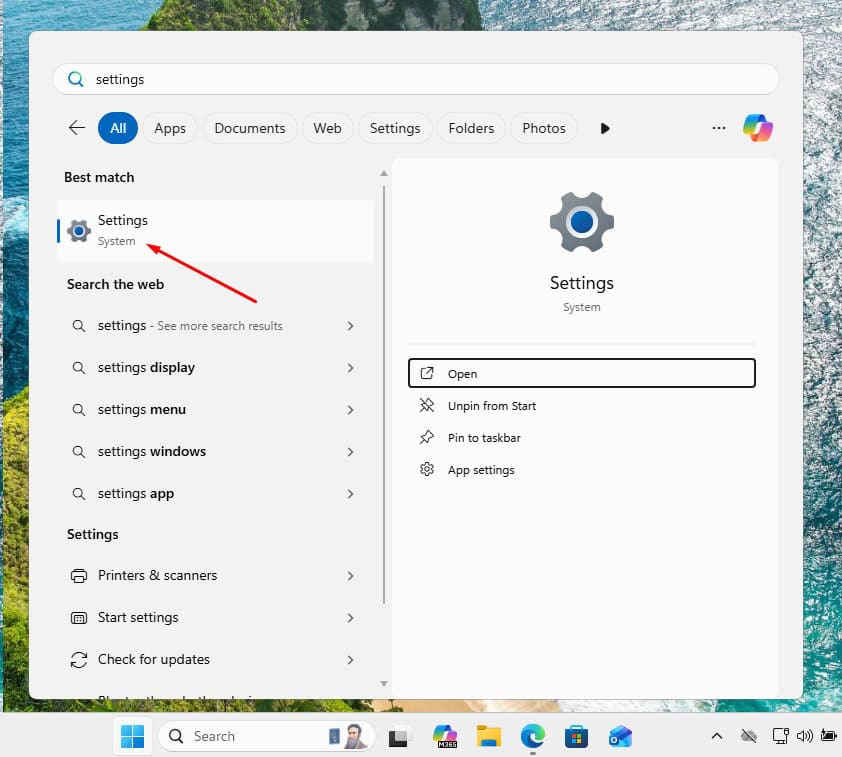
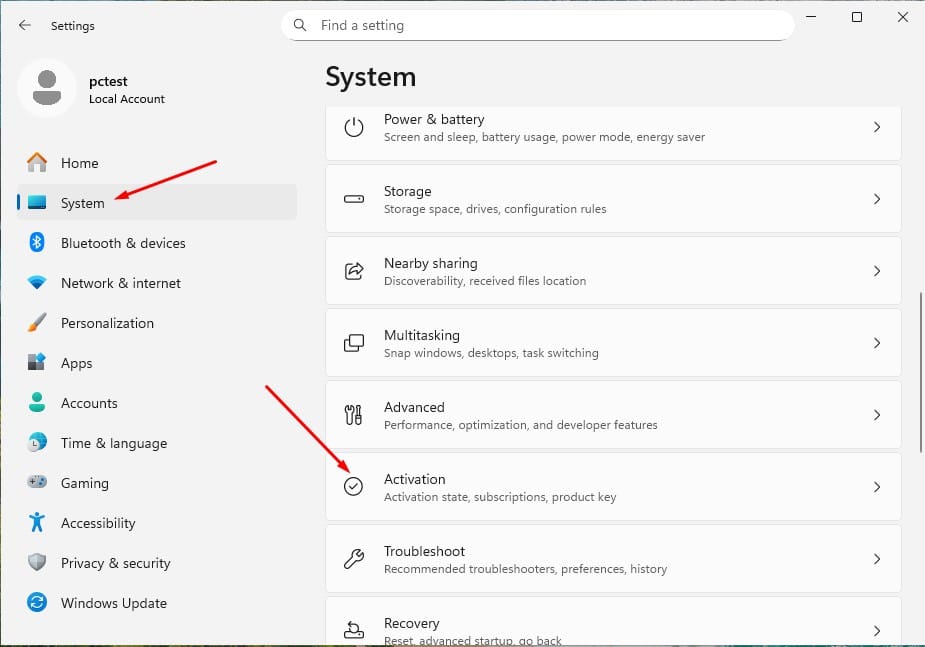
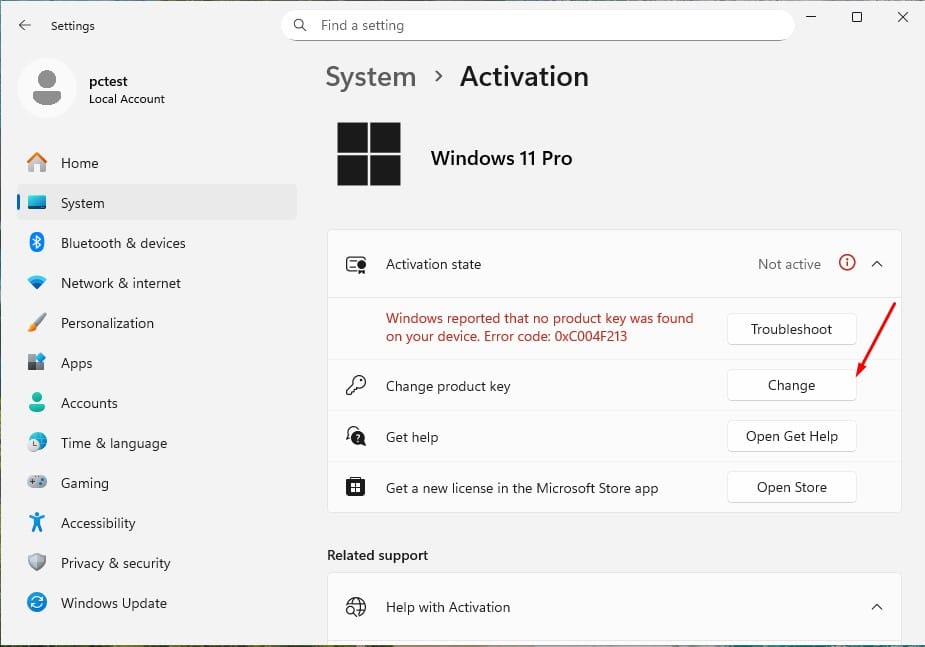
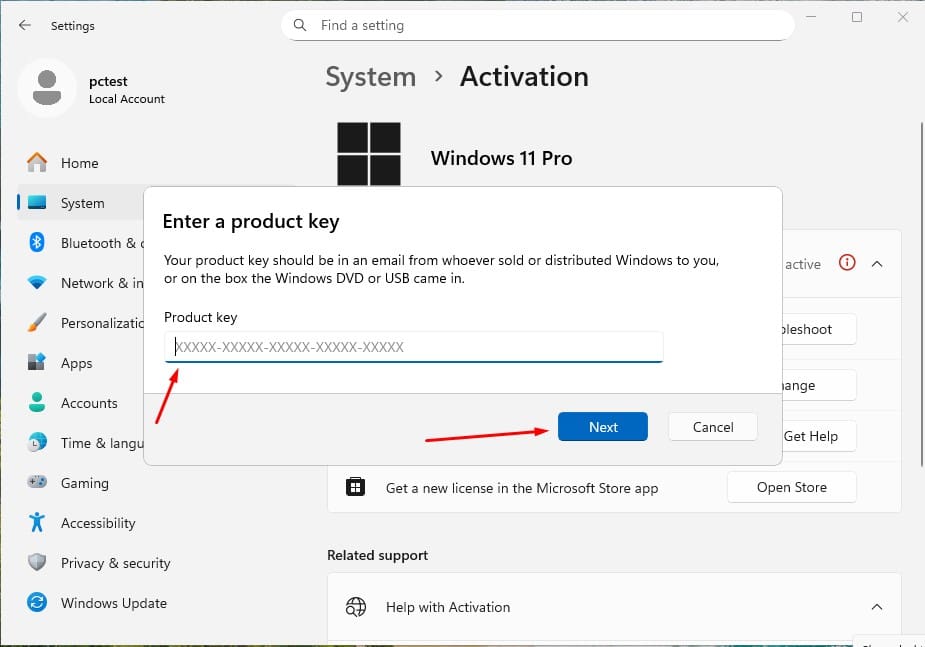
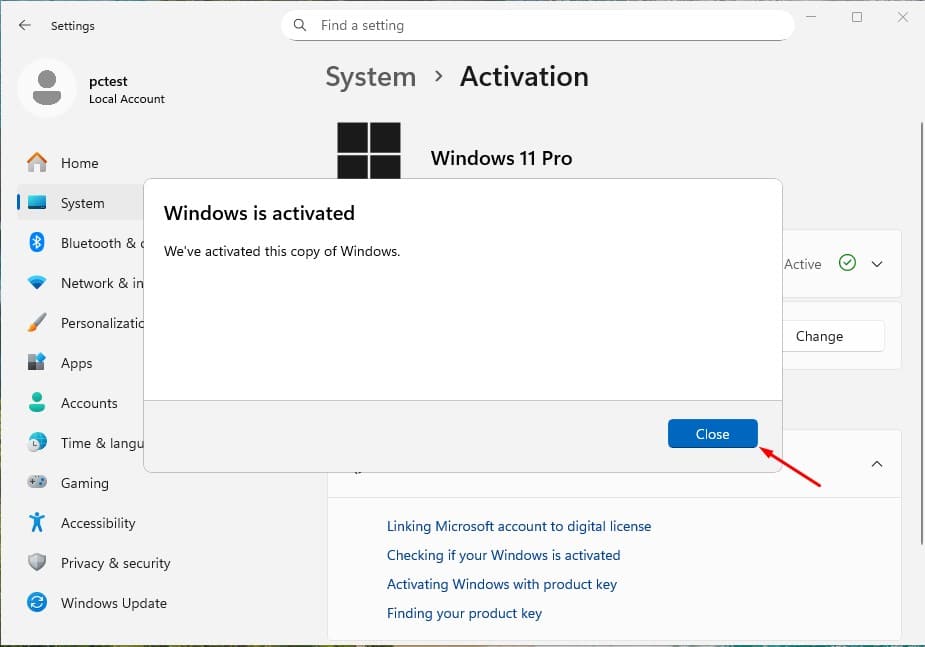
This way your operating system is correctly activated.
Upgrading from Windows 11 Home to Windows 11 Professional
To upgrade from Windows 11 Home to Windows 11 Professional, first use a generic product key. This key does not permanently activate Windows, but it does allow you to switch to the Pro edition. After that, enter the purchased license key to fully activate Windows.
1. Go to Settings
- Open Settings → System → Activation.
2. Change the product key
- Choose Change product key and enter the generic key for Windows 11 Professional:
VK7JG-NPHTM-C97JM-9MPGT-3V66T. - Click Next and follow the instructions. This will start the upgrade to the Pro edition.
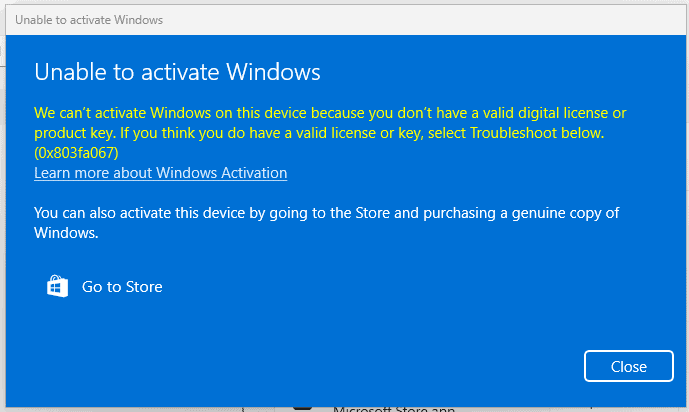
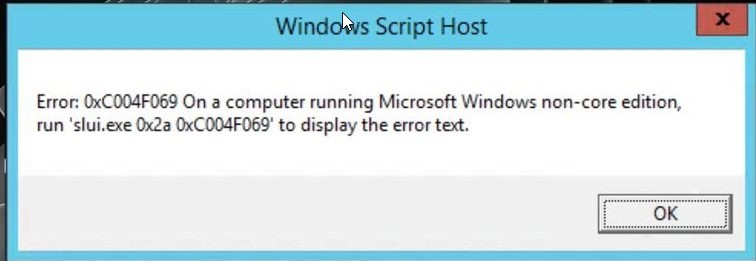
- Do you see one of the following error messages on the screen? Then temporarily disconnect your internet connection and repeat this step (2). Your PC will restart automatically. Once it has restarted, you can reconnect to the internet and continue with the following steps.
3. Enter your purchased activation code
- Once the system has been updated to Windows 11 Pro, go back to Settings → System → Activation.
- Choose again Change product key and enter the purchased Windows 11 Pro license code.
- Follow the instructions to activate the license.
4. Restart the device if necessary
- After activation, the system may ask to restart to apply all changes.
- If you follow these steps, Windows 11 Pro will be activated on your device.
Upgrading from Windows 10 Pro to Windows 11 Pro
Check requirements:
- Download from Microsoft 👉 https://aka.ms/GetPCHealthCheckApp
- Install and start the app.
- It tells you whether your computer meets the requirements (TPM 2.0, Secure Boot, compatible CPU, etc.).
- Is everything in order? Then proceed to the next step.
Once you have checked this and everything is in order, we can update your operating system.
Use the Windows 11 Installation Assistant
- Download via 👉 https://www.microsoft.com/software-download/windows11
- Click on “Download Now” under Windows 11 Installation Assistant.
- Run the installation file (
Windows11InstallationAssistant.exe). - Accept the terms. The assistant will then download the update and upgrade your Windows 10 Pro to Windows 11 Pro, while keeping your programs and files.
Clean installation
IMPORTANT NOTE:
This installation guide is intended for users who want to perform a clean installation of Windows 11 on a new or existing hard drive. This requires advanced technical knowledge. If you have no experience with clean installations of operating systems, have the process performed by an expert to avoid errors or data loss.
Prerequisites
- An empty USB stick with at least 8 GB of storage.
- A computer with Windows 10 or Windows 11 (to create the installation media).
- Back up all your files before you start. This process formats your drive and erases all existing data.
- Keep your important files safe. A clean installation formats the hard drive and erases all previous information.
- Make sure you have access to your passwords, files, and licenses before you proceed.
Step 1: Download the Media Creation Tool
Download the official Microsoft program to create a USB installation stick .
- Download the Windows 11 installation program via the “Download” button at the top of this guide.
- Run the downloaded file.
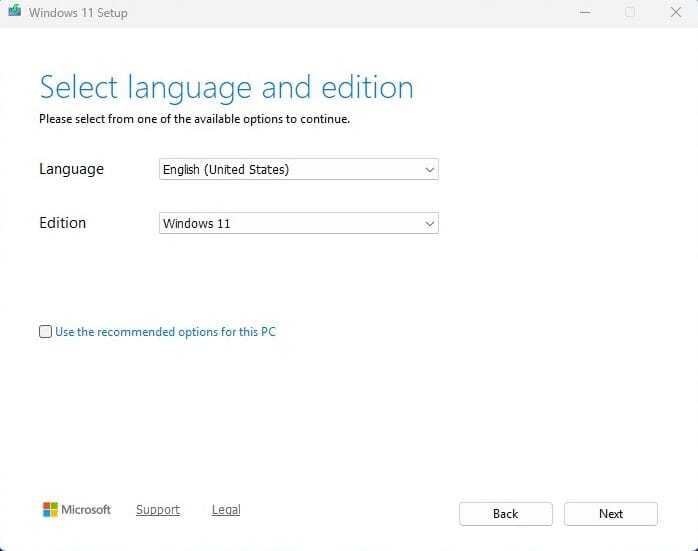
Note: When starting the tool, you will see three initial windows (accept changes, accept terms, choose language and Windows version). Follow the on-screen instructions.
Step 2: Create the ISO file or install directly onto a USB stick
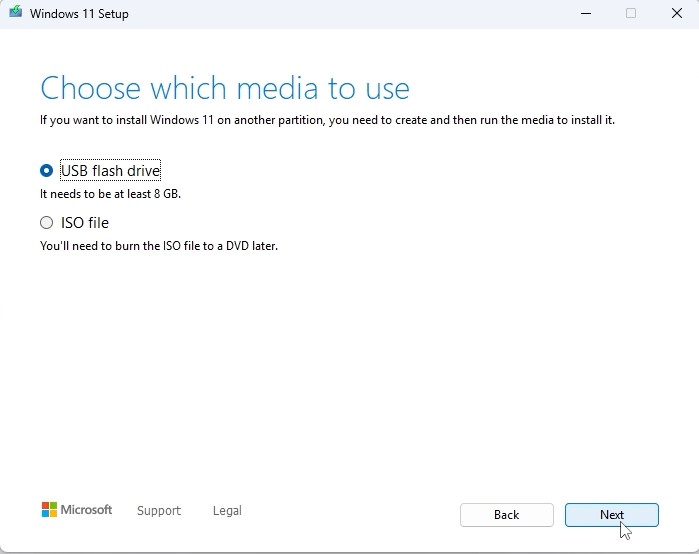
Under “Choose which media to use” you will see two options:
USB stick
- Insert the USB stick into your PC. Windows 11 will be automatically downloaded to it.
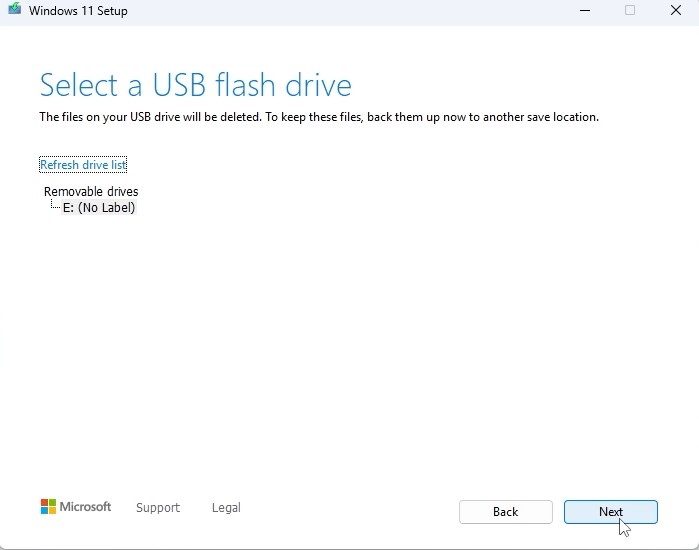
- Select the correct drive from the list. The tool will download and install Windows 11 onto your USB stick.
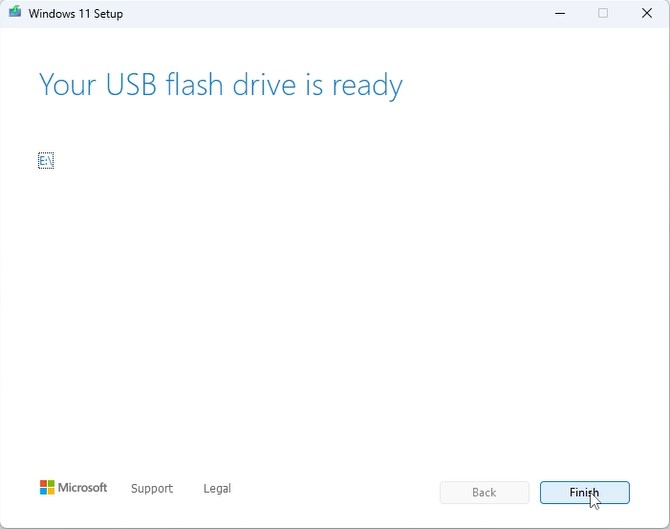
- Once the process is complete, you will see this screen:
Step 3: Start the Windows 11 installation
- Connect the prepared installation USB to the computer.
- Turn on the computer and go to the BIOS or the boot menu.
- Set the boot order so that the USB is the first boot option.
- Save the changes and restart the computer.
Note: consult your device's manual to find out how to access the boot menu (varies by manufacturer: F2, F12, ESC, DEL, etc.).
“Select language and edition”
Choose the operating system language and the 64-bit architecture.

Step 4: The installation process
- When you boot from the USB, the Windows 11 Installation Assistant appears.
- Follow the on-screen steps:
- Choose your language and keyboard layout.
- Click “Install now”.
- When prompted for a product key, you can enter your Windows 11 license key or click “I don't have a product key” (you can activate later).
- Is this the correct country or region? – Complete the region setup.
- Name your device – You can skip this step.
- Unlock your Microsoft experience – Sign in with your Microsoft account (email address and password) to access services like OneDrive and the Microsoft Store, and to sync your settings. If you don't have a Microsoft account, you'll need to create one to continue.
Create a Microsoft account:
Fill in:
- Username
- Password
- First and last name
- Country and date of birth
- Secondary recovery email address for the account
- Finally, solve the Windows security CAPTCHA
Create a security PIN:
Create a personal identification number (PIN) to quickly sign in to your device. Choose something easy to remember.
Skip Microsoft account creation
Don't have a Microsoft account and don't want to create one, or just want to skip this step? Then do the following:
- Once you are on the screen asking you to create a Microsoft account, press Shift+F10.
- A command prompt (CMD) will open. Type in it:
start ms-cxh:localonly - Then press ENTER.
This skips the account creation and you will be asked to create a local login account.
Step 5: Completion and initial configuration
During the process, your PC will restart several times.
Once you reach the login screen, the installation has been completed successfully.
Activation with product key:
Go to Settings → System → Activation → Change product key.
This way your operating system is correctly activated.
Downloads in other languages
Microsoft Windows 11 Pro
Download the desired version via the download link below.
| LANGUAGE | 64 BIT |
|---|---|
| DEUTSCH | Download |
| ENGLISH | Download |
| FRANÇAIS | Download |
| ITALIANO | Download |
| ESPAÑOL | Download |
| NEDERLANDS | Download |
| SVERIGE | Download |
(If your device has more than 4 GB RAM and runs a 64-bit version.)
We wish you a smooth installation. If you still have any problems or questions about the installation, please feel free to contact our customer service. We will help you as soon as possible.