
Aka.ms/sara-officeuninstallfrompc: completely remove Office with the Microsoft Support and Recovery Assistant

You're trying to uninstall Office, but your PC simply refuses to cooperate. Stubborn leftover files and vague error messages block the path to a clean installation. You're not the only one fighting with software that digs its heels into the system. Nothing is more frustrating than an installation that gets stuck halfway or a slow PC caused by conflicting programs. You just want it to work!
With the right tool, you can put an end to this today. Via aka.ms/sara-officeuninstallfrompc you bring the Microsoft Support and Recovery Assistant into your home. This powerful assistant removes every Office version down to the bone. No more error messages. No more blockages. Your PC becomes lightning fast again and gets a completely clean slate. It is the most efficient way to permanently resolve software conflicts.
In this guide, you will learn exactly how to clean up your computer for a fresh start. We will fully prepare your PC for a new installation of Office 2024. This way, you can switch to an affordable and legal license from LicentiePromo without technical worries. A clean PC is the only foundation for a flawless activation and an optimally functioning system.
Key Points
- Completely remove stubborn Office versions when the standard method via the Control Panel fails.
- Download the Microsoft Support and Recovery Assistant directly via aka.ms/sara-officeuninstallfrompc for a thorough cleanup of your system.
- Prevent annoying error messages and activation conflicts when installing your new Office 2024 Professional Plus.
- Get your PC ready in minutes for an affordable, legal license without a subscription from LicentiePromo.
- Discover what to do if the recovery tool doesn't work, including advanced solutions like PowerShell.
What is aka.ms/sara-officeuninstallfrompc and when do you need it?
The Microsoft Support and Recovery Assistant, also known as SaRA, is much more than a simple program. It is a free diagnostic tool developed by Microsoft itself to resolve stubborn software issues. When your PC refuses to cooperate, aka.ms/sara-officeuninstallfrompc is the direct path to a solution. The tool scans your entire system for corrupted registry files that hinder a normal uninstall. This is essential for anyone who wants to get rid of those annoying monthly costs. It is the perfect preparation for those who want to upgrade from an Office 365 subscription to a one-time, affordable license. Since the early days of the Microsoft Office suite , installation files have become scattered all over your hard drive. A thorough cleanup is therefore not a luxury, but a necessity for a smoothly running system.
When the standard uninstall is not sufficient
Sometimes the Control Panel just doesn't do what it's supposed to do. You click on 'uninstall', but nothing happens or you get a vague error message. Messages like 'Office cannot be uninstalled' are a clear sign that something is wrong in the background. Often it's remnants of old trial versions hidden deep in the folder structure. These hidden files are often the culprit when you try to activate a new license. They cause conflicts between different versions, which slows down your PC and causes crashes. By using aka.ms/sara-officeuninstallfrompc , you force the system to erase all traces. This prevents you from running into activation problems later with your new Microsoft Office Professional Plus 2024.
Security and preservation of your files
Safety is a top priority at LicentiePromo. The recovery assistant is an official Microsoft product. So you don't need to worry about viruses or damage to your Windows registry. A frequently asked question is whether your documents are preserved during this process. The answer is a clear yes. The tool only removes the software files and the associated system settings. Your Word documents, Excel sheets, and important presentations remain safely in place. Still, it is wise to always be careful with major changes. To be safe, make a backup of your Outlook profile and your contacts. This way, you can be sure that you can get back to work immediately after this clean installation without data loss. The process is fast, safe, and highly effective for every user.
Step-by-step guide: uninstall Office with the Recovery Assistant
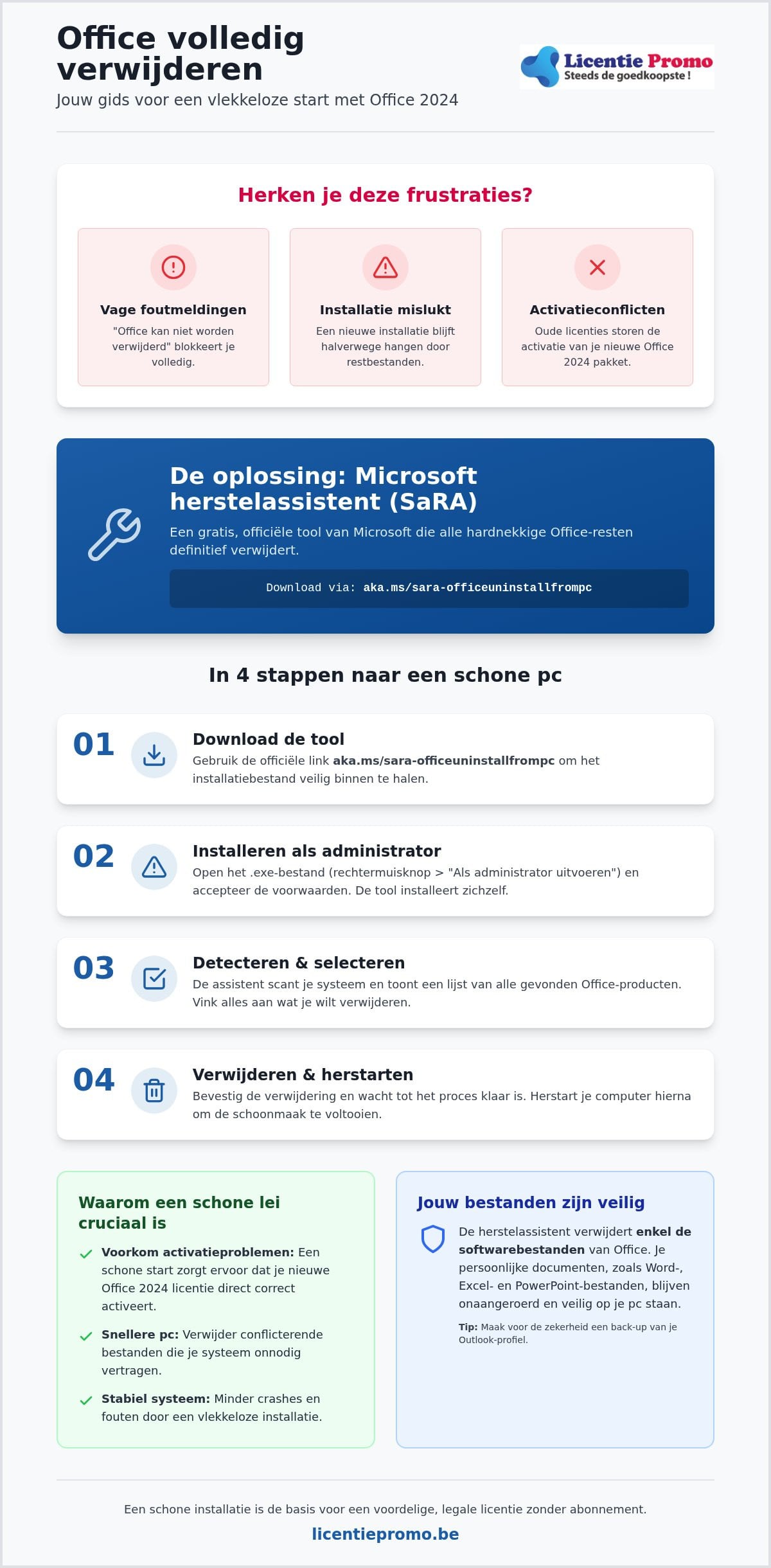
Done struggling with half-baked uninstalls. The process starts at the source. Click the link aka.ms/sara-officeuninstallfrompc to directly download the official installation file. This is the shortest path to a flawless system. Once the download is complete, open the .exe file. Always run this file as administrator. This gives the assistant the necessary permissions to make deep changes to the Windows registry. This method is the cornerstone of the Microsoft’s official uninstall guide. It provides the certainty you need for a professional cleanup.
Download and install the tool
After you have opened the file, the Microsoft license agreement appears on your screen. Accept these terms immediately to proceed to the next step. The tool installs itself on your PC in no time. Wait patiently while the assistant performs the initial system scan. During this scan, the software searches for all active and inactive Office installations on your hard drive. This process is thorough and often finds remnants of old versions that you had long forgotten about yourself. It is this precision that ensures your new license will activate without any problems later on. You will see the progress bar fill up on its own while the tool analyzes your PC.
Complete the removal process
Once the scan is complete, you will see a clear list. Check all detected Office products you want to remove. Whether it's an outdated Office 2016 or a persistent Microsoft 365 trial version, select them all for the best result. Then confirm that you understand that all associated applications such as Word, Excel, and Outlook will be removed. The tool will now really get to work with the big cleanup. The registry will be cleaned and all system paths will be restored to their original state.
Once the assistant reports that it is done, you must restart the PC immediately. Never skip this step. Only after a restart are all temporary blocks and residual files permanently gone. Your computer is now officially ‘clean’ and completely free of software conflicts. This is the perfect moment to switch to an Office 2024 license from LicentiePromo. You are now ready for a flawless installation without annoying error codes or delays. Fast, efficient, and immediate results; that is the power of good preparation with aka.ms/sara-officeuninstallfrompc.
Why a clean installation is essential for Office 2024 Professional Plus
A fresh start begins with a clean slate. You don't want old clutter slowing down or blocking your new software. Make sure your system is 100% ‘clean’ before you install office 2024 professional plus . Old license data is often the silent killer of smooth activation. It causes deep-seated conflicts that you only notice when it's too late. Prevent those notorious ‘account conflict’ messages in Word or Excel by taking preventive action now. A clean PC guarantees not only successful activation, but also lightning-fast startup times for your new suite. Save yourself hours of frustration by choosing the right approach from the start.
Preventing activation problems
Residuals from Office 365 are particularly stubborn and often leave digital traces. These ‘tokens’ remain in your system and constantly try to connect to your old subscription. This blocks the activation of a new, permanent license you just purchased. The Microsoft Support and Recovery Assistant is specifically designed to wipe away these deeply rooted remnants. The tool clears old sign-in data that would otherwise linger and sabotage your new installation. Using aka.ms/sara-officeuninstallfrompc is the only way to be 100% sure of a flawless start. A clean slate is the best foundation for your new software. At LicentiePromo, we offer an activation guarantee, but it works best on a system that is completely free of old baggage.
Optimize system performance
Old installations often leave invisible background processes behind in your Windows services. These processes consume unnecessary memory and significantly slow down your PC without you noticing. By performing a thorough removal with aka.ms/sara-officeuninstallfrompc, you immediately free up valuable disk space. You clear temporary installation files and logs that sometimes take up gigabytes of space. This is also the ideal moment to prepare your PC for the latest features of Windows 11 Pro. A cleaned-up registry ensures maximum stability and prevents unexpected crashes during your work. You notice the difference immediately when opening heavy Excel sheets or complex documents. No more stuttering, just pure speed and efficiency. Choose certainty and speed in one simple move.
What to do if the uninstall tool does not work?
Even the most reliable tools like aka.ms/sara-officeuninstallfrompc can sometimes encounter a system that is completely blocked. This often happens when previous uninstall attempts were interrupted halfway. You are then left with a ‘half’ removed package that can no longer be found anywhere, but still blocks new installations. Before taking drastic measures, you must first disable all active installation processes. Open your Task Manager via Ctrl+Shift+Esc and scan the list for anything related to Office. Look for processes such as ‘OfficeClickToRun’ or ‘Setup’. Forcefully close these processes. This breaks the digital block and gives your PC breathing room to follow instructions.
Manual removal via settings
Is the automatic assistant not working properly? Then go back to the basics of Windows. Navigate to Settings, choose Apps and go to Installed apps. Search the list for Microsoft Office and click the three dots next to the name. Choose the option 'Uninstall’. Is the button not responding or do you get an error message right away? Then first try the option 'Modify’ and select 'Online Repair’. This may sound contradictory, but it repairs Windows' built-in uninstall files. After this repair process, it is often possible to completely remove the software through the normal route. It is a simple trick that often provides the solution without having to dive deep into the technicalities.
Advanced options with PowerShell
For users who are not afraid of a bit of code, PowerShell offers the ultimate solution to force software. Always open PowerShell as administrator to get full write permissions on your system. Microsoft provides specific scripts that force installations to stop and directly delete all registry keys. Be extremely careful here. Manually editing your Windows registry is not without risk. A wrong click can make your entire operating system unstable. Is your registry already heavily damaged by previous failed attempts? Then consider a full system restore to a point where your PC still worked correctly. This way you restore the integrity of your computer before attempting a new try.
Once your PC is finally free of all stubborn Office remnants, you naturally never want to experience this problem again. From now on, choose stability and hassle-free activation. Buy your legal Office 2024 license here and enjoy software that does exactly what it's supposed to do. At LicentiePromo, you always get a working code and full support for your fresh start. This way, you'll be productive again in no time on a clean and fast system.
Save on your new Office 2024 license at LicentiePromo
Your PC is finally clean. The stubborn remnants of old software have completely disappeared thanks to the thorough scan by aka.ms/sara-officeuninstallfrompc. This is the ideal moment to take back control of your own computer. Permanently stop those expensive monthly subscriptions that drain your wallet. Switch today to a permanent license that remains yours forever. At LicentiePromo, you buy a legal Office 2024 Professional Plus license for a fraction of the normal retail price. No more hidden costs. No more annoying automatic debits. Just a one-time, honest purchase for a top product that lasts for years.
Speed is our standard. You don't have to wait for a package in the mail. Order now and receive your personal product code within 5 minutes in your mailbox. You can get started right away with the installation on your clean system without software conflicts. Enjoy permanent activation without ever seeing an extra invoice again. It's the smartest investment for your digital workspace. You save hundreds of euros while getting exactly the same functionality as with the most expensive subscriptions on the market.
Why choose LicentiePromo?
Reliability is not an empty promise with us. We offer a 100% activation guarantee on all our keys. So you take no risk with your purchase. Our licenses are fully legal and come from unused corporate stock of large organizations. This is a completely legitimate method within the European Union to give software licenses a second life. As a result, you benefit from absolute rock-bottom prices for original software. Do you still have a question about installation or activation? Our expert customer service is ready to assist you directly. We guide you through the process until everything works flawlessly on your PC. For entrepreneurs who also want such service quality for their own business: visit Byteleaders for professionally outsourcing their customer contact.
Complete your system
A powerful Office experience requires a foundation that is also up-to-date. Therefore, combine your new software with a Windows 11 Pro license for the best security and optimal speed. Do you work on a Mac or do you only need the basic apps for your small business? Then discover our sharp options for Office Home & Business 2024. You save hundreds of euros with us compared to the standard retail prices in physical stores. Make the switch today and experience the freedom of legal software at the sharpest price in Belgium. After using aka.ms/sara-officeuninstallfrompc , your PC is completely ready for it!
Start fresh today and save immediately
You now have all the tools to definitively defeat those stubborn Office installations. By using aka.ms/sara-officeuninstallfrompc , you have completely freed your system from corrupt files and old license remnants. Your PC is lightning fast again and optimally prepared for the future. No more vague error messages or slow startup times. The path to a worry-free and affordable workspace is now fully open.
Choose the certainty of a permanent solution without monthly costs. At LicentiePromo you receive a legal license within 5 minutes directly in your mailbox. You enjoy a 100% activation guarantee and never need an expensive subscription again. It is the fastest way to be fully operational again with the latest software. Stop overpaying and choose a smart, one-time investment.
Buy your Office 2024 license now without a subscription at LicentiePromo!
Take the step towards maximum productivity on a clean system. You are completely ready for it!
Frequently Asked Questions
Is the link aka.ms/sara-officeuninstallfrompc safe to use?
Yes, the link aka.ms/sara-officeuninstallfrompc is 100% safe and reliable. It is an official shortened URL from Microsoft that takes you directly to the download of the Microsoft Support and Recovery Assistant. So you don't need to worry about malware or unreliable third-party software. The tool is specifically designed to help Windows users with complex installation issues without damaging the integrity of the operating system.
Will I lose my Outlook emails if I uninstall Office with this tool?
No, you will not lose your personal files and Outlook emails during this process. The tool is programmed to remove only the program files and registry settings of the Office suite. Your documents, spreadsheets, and local email archives will remain untouched on your hard drive. However, at LicentiePromo, we always recommend making a backup of your most important data before making major system changes, just to be safe.
Can I also use the recovery assistant for Windows 10 or 11 problems?
Absolutely, the Support and Recovery Assistant is a versatile diagnostic tool for both Windows 10 and Windows 11. In addition to removing Office, the tool can also help with issues related to Windows activation, Outlook synchronization, and even Teams errors. It scans your system for configuration errors and suggests immediate solutions. It is an indispensable tool for any PC user who wants to quickly and efficiently resolve technical glitches without technical knowledge.
What is the difference between this tool and the standard Windows uninstall?
The standard Windows uninstall via the Control Panel is often too superficial for persistent problems. It often leaves behind temporary folders and old registry keys that can block new installations. The tool behind aka.ms/sara-officeuninstallfrompc goes much deeper and performs a thorough cleanup down to the smallest corners of your system. This guarantees that no trace of the old software remains, which is essential for a flawless new activation.
Do I need to restart my computer after using the tool?
Yes, restarting your computer is a crucial step to complete the process. The tool removes files that may have been locked by active processes during Windows usage. Only after a full restart are these final remnants permanently erased and the registry fully updated. Never skip this step if you want to install a new, affordable license from LicentiePromo on a clean machine immediately afterward.
Does the SaRA tool also work for removing individual apps like Teams?
Yes, the SaRA tool offers specific scenarios for individual applications such as Microsoft Teams and OneDrive. Although the focus is often on the full Office suite, you can also use the assistant for targeted issues with individual components. At the start, the tool asks you which specific problem you want to solve. Simply choose the app that is not working properly and follow the automatic steps for a quick repair or complete removal.
Can I install a new Office 2024 license immediately after uninstalling?
Yes, that is certainly possible and it is also the recommended approach for the best result. Once the tool is finished and your PC has restarted, your system is completely free of old license remnants. This is the perfect moment to activate your new Office 2024 Professional Plus license. Because all old tokens and conflicting files have been cleared, the new product code will be accepted by Microsoft immediately and without annoying account conflicts.
What if the tool does not detect my Office version?
If the tool does not automatically detect your version, you can manually choose the option 'Office is installed but I cannot uninstall it'. The assistant will then perform a deeper scan to locate hidden or corrupted installation files. If this unexpectedly does not work either, you can fall back on the PowerShell method we discussed earlier. There is always a solution to get your PC completely clean again for your new license.