
Building a PC: which Windows version should you choose in 2026?
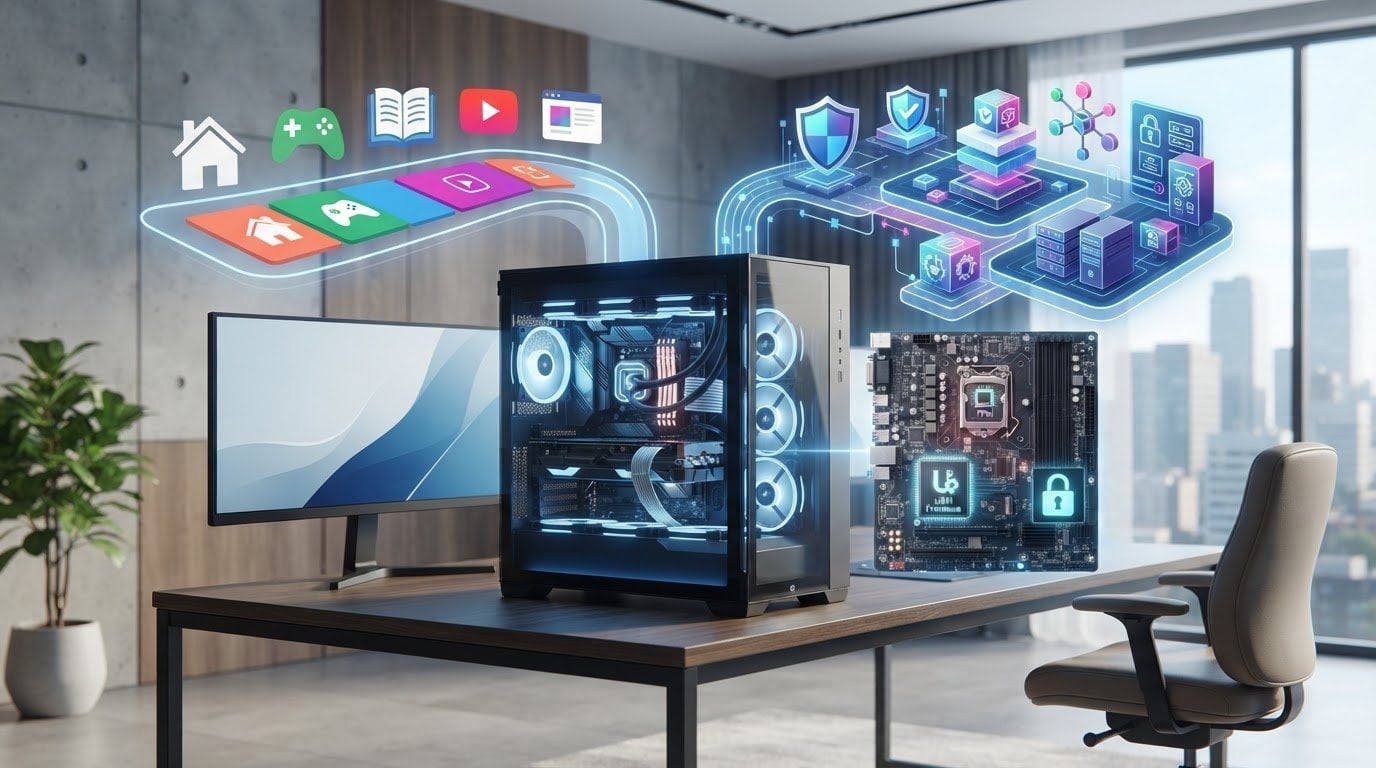
Doubting between Windows 11 Home and Pro? That's understandable. You don't want to choose an edition that lacks features, but you also don't want to pay for capabilities you'll never use. In this article you'll discover which version suits your usage and how to check before installation whether your PC meets the system requirements. Think among others of TPM 2.0 and Secure Boot.
You will also read how to correctly install and activate Windows, so that your new computer is ready for use. LicentiePromo delivers licenses digitally by email and states an activation guarantee and a possibility for a refund. This way you make a well-considered choice and start with the right Windows edition on your self-built PC.
Key Points
- Discover whether Windows 11 Home is sufficient for your daily use or whether you need Pro features.
- Check the system requirements before installation, with extra attention to TPM 2.0, UEFI and Secure Boot.
- Do you use your PC for home, study, or self-employed work? Align your choice with the features you really need.
- Follow the right order: check your PC, choose an edition, prepare the installation, and activate your license.
- This is how you make the choice when building a PC which Windows version to choose and discover which Windows 11 license suits your PC.
Building a PC: when is Windows 11 Home sufficient and when do you choose Pro?
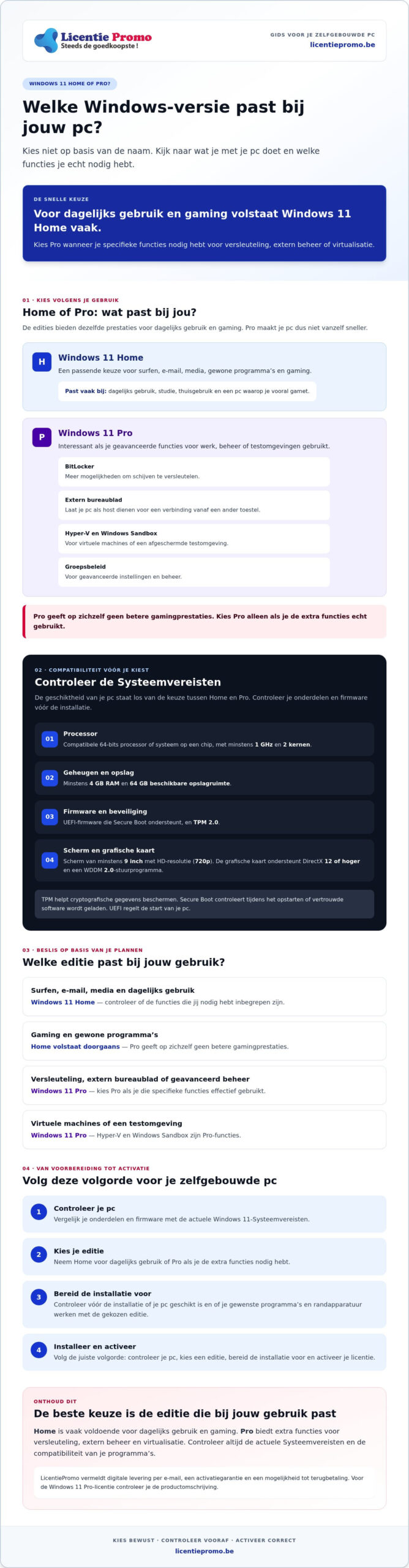
Which Windows edition suits your new PC? Choose based on what you do with it, not because Pro automatically sounds more powerful. For browsing, email, media and common programs, Windows 11 Home is sufficient for many users. If you need specific business or advanced features, Pro may be a better fit. That way you answer the question “building a PC which Windows version to choose” with your own usage as the starting point.
For daily use and gaming, Home and Pro deliver the same performance. The Pro edition does not automatically make your PC faster. The difference lies mainly in features for encryption, remote management and virtualization. Before you decide, also check Microsoft's current product description. For a general Dutch-language overview, you can find extensive information about Windows 11.
What can you do with Windows 11 Home on a self-built PC?
With Home, you can get started with everyday tasks such as visiting websites, reading emails, watching videos, and using regular programs. Even for a PC that you mainly use for gaming, Pro is not necessary to get better general or gaming performance. However, do check whether your desired programs and peripherals work with your chosen Windows edition.
When does Windows 11 Pro offer a useful difference?
Pro is especially interesting if you need features that Home does not offer. BitLocker gives you more options to encrypt disks. With Remote Desktop, your PC can serve as a host for a connection from another device. Hyper-V and Windows Sandbox are useful if you want to use virtual machines or an isolated test environment. Pro also offers Group Policy for advanced settings and management.
| Your usage | Suitable edition | Point of attention |
|---|---|---|
| Browsing, email, media and daily use | Windows 11 Home | Check whether the features you need are included. |
| Gaming and regular programs | Windows 11 Home is usually sufficient | Pro by itself does not provide better gaming performance. |
| Encryption, remote desktop, or advanced management | Windows 11 Pro | Choose Pro if you actually use these specific features. |
| Virtual machines or a test environment | Windows 11 Pro | Hyper-V and Windows Sandbox are Pro features. |
Choose Windows 11 Pro if you really need the extra features for work, management or virtualization. For everyday use, Home is often sufficient. LicentiePromo offers a Windows 11 Pro license digitally. View the Windows 11 Pro license and check the product description before you order.
Check before installation whether your new PC meets the Windows 11 System Requirements
Choosing a suitable Windows edition is only part of your preparation. Also check whether the components and firmware of your self-built PC Windows 11 support. Compatibility determines whether you can install the system; the choice between Home and Pro depends on the features you need. This way you avoid confusing the edition with the suitability of your PC when asking "pc building which Windows version to choose".
Which system requirements should you check for PC components?
Compare the current list from Microsoft with the specifications of your components. According to the Windows 11 system requirements, your PC must meet at least these hardware conditions:
- Processor: a compatible 64-bit processor or system on a chip, with at least 1 GHz and 2 cores.
- Memory and storage: at least 4 GB RAM and 64 GB available storage space.
- Firmware and security: UEFI firmware that supports Secure Boot, and TPM 2.0.
- Display and graphics card: a screen of at least 9 inches with HD resolution (720p), plus a graphics card that supports DirectX 12 or higher and a WDDM 2.0 driver.
In short: Windows 11 requires a compatible 64-bit processor, at least 4 GB RAM and 64 GB storage, UEFI with Secure Boot support, TPM 2.0 and suitable display and graphics hardware. TPM is a security feature that helps protect cryptographic data. Secure Boot checks during startup whether trusted software is loaded. UEFI is the firmware that controls the start of your PC. Consult Microsoft for the complete, current system requirements and also check there for any additional conditions, such as the internet connection for updates and certain features. Windows 11 Home additionally requires an internet connection and Microsoft account during the first installation.
What do you do if a component does not appear to meet the requirements?
First check the exact model number of your processor and motherboard. Compare that with the information from the manufacturer and Microsoft. A component may support a feature that is not yet enabled in the firmware, but do not assume that.
Settings and names differ per motherboard. Therefore, consult the manufacturer's manual to find out where to locate UEFI settings for TPM 2.0 and Secure Boot. If any doubt remains, confirm compatibility before finalizing your component selection. Do not select components based on unconfirmed minimum specifications and do not rely on ways to bypass security checks.
Your choice of Windows edition does not change this compatibility check. If you want to compare the differences between Home and Pro side by side again, take a look at Microsoft's official comparison of Windows 11 Home and Pro. Once you know which edition suits you and your components pass the check, you can view the product information about Windows 11 Home .
Home or Pro: compare Windows editions with the way you use your PC
Which edition suits your plans for the PC? Think about what you will use it for: gaming, studying, working independently, or managing devices. Windows 11 Home and Pro are not universally better or worse. Pro mainly adds features for specific work and management tasks. For current hardware compatibility, you can also consult the official Windows 11 system requirements .
Which Windows version suits gaming and daily use?
For browsing, email, movies, schoolwork, and gaming, Home is a logical starting point for many PC builders. The Windows edition does not replace suitable components. Your processor and graphics card play a major role in how games and programs run. So match them to what you want to play or run. Home can be suitable, but also check what requirements your chosen software sets.
Even for study, the choice is usually simple. If you work with documents, online learning platforms, and ordinary applications, Home may suffice. If you need a specific Windows feature for a course or internship, first check the current product information and ask which edition is required. Do not assume Pro just because you use your PC for school or work.
When do you need extra management or security features?
Pro can be useful if you effectively use the extra features. BitLocker provides additional options for encryption and disk management. Remote Desktop lets your PC serve as a host for a connection from another device. Hyper-V and Windows Sandbox are intended for virtual machines and a separate test environment. Group Policy provides more options for managing advanced Windows settings.
These features are not the same as antivirus software or a separate firewall. They support encryption, management, or a shielded working environment, but choose security software separately based on your needs. For the precise, current differences, also check Microsoft's product information.
Choose Home if you mainly plan daily tasks, study, or gaming and don't need specific Pro features. Consider Pro if you need encryption, Remote Desktop connections, virtualization, or advanced management. This way, you make the choice for “building a PC which Windows version to choose” based on concrete features, not on the name.
Do you want to use Pro for your new PC? Read the practical information with the Windows 11 Pro license and check before you choose whether the features match your usage.
How to prepare the installation of Windows on your self-built PC
A smooth start begins with the right order. First check whether your components meet the Windows 11 system requirements. Then choose Home or Pro based on your usage and make sure your license matches that edition. Next, prepare the installation using the current instructions from Microsoft. Activate Windows as soon as the installation is complete. That is how you approach “building a PC which Windows version to choose” practically, from component check to activation.
Which steps do you follow during the first Windows installation?
- Check your PC: confirm the compatibility of the components and settings with the manufacturer and Microsoft.
- Choose the edition: decide whether you need Windows 11 Home or Pro. Check in advance whether your license is intended for that edition.
- Follow Microsoft's installation procedure: download the latest installation files and instructions from the official Microsoft Windows 11 download page. Follow the steps on that page and read each installation screen carefully.
- Check the edition during installation: if Windows asks you to choose an edition or enter a product key, match that choice to your license. Screens and options may vary. If in doubt, consult the current Microsoft instructions.
- Complete the installation: finish the initial setup and afterwards check whether the correct edition has been installed.
If you don't see a choice for an edition or product key during installation, don't just continue based on an assumption. Check the official instructions and the license details so you don't mix up Home and Pro.
How do you check whether Windows is activated correctly?
After installation, open Settings and go to System > Activation. Check the activation status there. The exact display may depend on your Windows version. If you see an error message, follow the instructions in Windows and check whether the product key matches the installed edition.
Store your product code in a safe place. Do not share it publicly or in a message that others can see. LicentiePromo states an activation guarantee. If the activation process does not work, first check whether you have installed the correct edition and whether you are entering the code correctly.
Do you want to consult installation information from LicentiePromo? View the Windows 11 downloads and help page.
Choose the right Windows 11 license for your PC and take the next step
The right choice depends on three things: what you use the PC for, which Windows features you need, and whether your components meet the system requirements. Home is suitable for everyday use. Pro is intended for those who need specific additional features, such as advanced management or virtualization. Before ordering, also check that the license matches the edition you want to install.
Which product page suits your choice?
LicentiePromo offers a Windows 11 Pro license. Choose the edition that suits your use and check the product description before you order. After payment you will receive the license by email within five minutes. The license is intended for permanent activation and there is no subscription or extra cost.
- For Windows 11 Home: view the product information on the Windows 11 Home page.
- For Windows 11 Pro: view the Windows 11 Pro license.
LicentiePromo mentions an activation guarantee and a possibility of refund. Check the product terms for the applicable information and have your order details at hand during the activation process.
What do you do if activation fails?
First check which edition is on your PC. Compare it with the edition on your license and check whether you entered the product code correctly. Then open Settings > System > Activation to view the activation status and any error message. Keep your product code safe and do not share it publicly.
Still can't activate? Then contact LicentiePromo's customer service and have your order details and the error message at hand. Also check the product terms for information about the activation guarantee.
Do you know which edition suits your PC? Choose the right product page and check the description before you order.
Choose your edition and get your PC ready for use
The choice between Windows 11 Home and Pro depends on what you want to do with your self-built PC. For daily tasks and gaming, Home is often sufficient. Choose Pro if you need specific features for management, encryption, or virtualization. This is how you answer the question building a PC which Windows version to choose based on your usage, not just on the name.
Before installation, check whether your components meet the Windows 11 system requirements. Then match your license to the edition you are installing and verify that Windows is activated correctly. LicentiePromo offers a Windows 11 Pro license digitally and states an activation guarantee and a refund option.
Ready to choose the right edition? View the Windows 11 Pro license at LicentiePromo and check whether it matches your choice. With the right preparation, you take the next step toward a PC that is ready for your plans.
Frequently asked questions about choosing Windows for your PC
Which Windows version should you choose for a self-built PC?
Choose Windows 11 Home for daily use, study or gaming, unless you need specific Pro features. For Pro, think of encryption with BitLocker, using your PC as a host for Remote Desktop, virtualization or advanced management. Also check whether your components meet the Windows 11 system requirements and whether your license matches the edition you are installing. That way you make the choice based on your usage, not based on the name.
Is Windows 11 Home sufficient for gaming?
Yes, Windows 11 Home is sufficient for many gaming PCs. According to the available information, Home and Pro deliver the same performance for gaming. The edition does not replace a suitable processor, graphics card, or other components. Match those to the games you want to play and check their requirements. Only choose Pro if you also need a specific Pro feature, such as virtualization or advanced management. So you do not need to choose Pro to make your PC faster.
Do you need Windows 11 Pro for a new PC?
No, a new PC does not automatically need Windows 11 Pro . For browsing, email, study and ordinary programs, Home may suffice. Pro is especially useful if you need features such as BitLocker, Remote Desktop as a host, Hyper-V, Windows Sandbox or Group Policy. First make a list of what you want to do with your PC. Then choose the edition that suits it and check that your license is intended for that edition.
What are the system requirements for Windows 11 for a self-built PC?
Windows 11 requires, among other things, a compatible 64-bit processor of at least 1 GHz with two or more cores, at least 4 GB of RAM and 64 GB of storage space. Your PC also needs UEFI firmware that supports Secure Boot and TPM 2.0. Requirements also apply to the graphics card and the screen. Before choosing your components, check the complete, current system requirements at Microsoft, because looking only at the minimum figures does not confirm that every component is compatible.
Can you install Windows 11 on a PC you build yourself?
Yes, you can install Windows 11 on a self-built PC if the components and firmware meet the current system requirements. Check especially the processor, TPM 2.0, UEFI and Secure Boot. Then use Microsoft's official installation files and instructions. During installation, choose the edition that matches your license. After the initial configuration, you can check the activation status in the Windows settings and follow up on any notifications
What is the difference between Windows 11 Home and Pro?
Home is aimed at daily use and provides the basis for tasks such as browsing, email, study, and gaming. Pro adds features for specific needs. Examples include more extensive options for disk encryption with BitLocker, using your PC as a host for Remote Desktop, Hyper-V and Windows Sandbox for virtual environments, and Group Policy for advanced settings. Choose Pro only if you need such features. Consult Microsoft for the current product description of both editions.
Can you upgrade from Windows 11 Home to Pro later?
Yes, you can later switch to Windows 11 Pro if you have a valid Pro license. Before the upgrade, check the current Microsoft instructions and verify that you are using the Pro license for the correct device. After the switch, open the Windows settings and check under Activation whether the correct edition is active. Keep your product key safe. This way, you can choose Home to start with and later decide whether you really need the extra Pro features.