
Enable Remote Desktop in Windows 11: this is how you set it up securely
You can find the correct setting and still not get a connection. Often this is not due to your clicking, but to the Windows edition or the PC you are trying to connect with. Want to know how to enable remote desktop in Windows 11? First check whether the PC you want to control remotely can serve as a host.
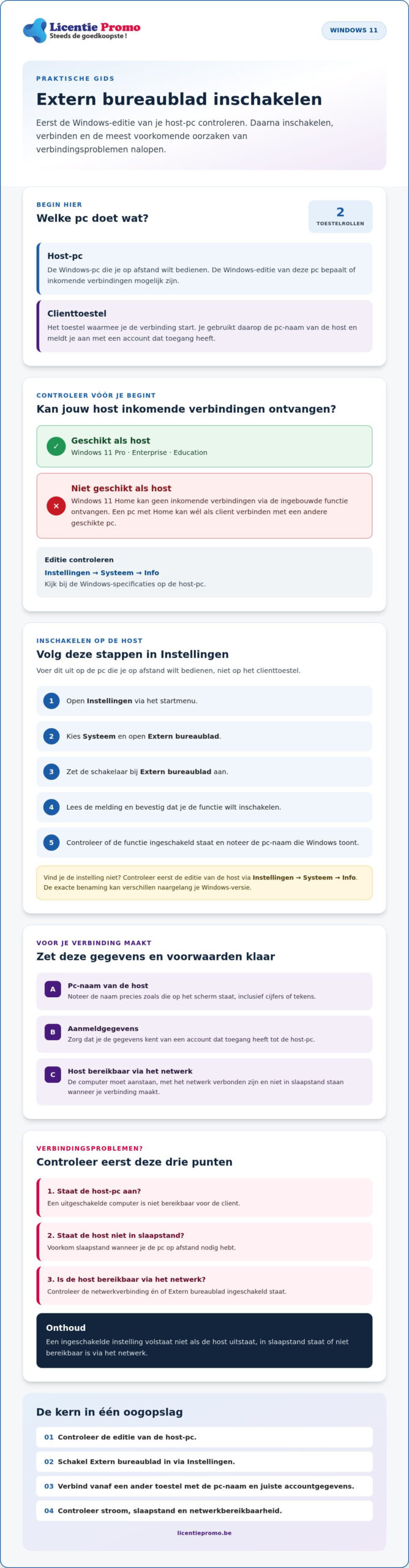
Windows 11 Home cannot receive incoming connections via Remote Desktop. For that, the host must use Windows 11 Pro, Enterprise, or Education. If the correct edition is on the host, then you enable Remote Desktop via Settings and connect from another device using the PC name. This prevents you from continuing to search for a setting that is not available for your edition.
In this guide, you will read step by step how to enable Remote Desktop, connect from another device, and check common problems. You will also discover how to better secure remote access. Start with the basics so you can see more quickly where the problem lies.
Key Points
- Check which PC is the host and which PC is connecting as the client. This way you know on which device you need to set up Remote Desktop.
- Enable Remote Desktop through Settings on a host running a supported Windows edition.
- Use the host's PC name to connect from another device.
- If you have connection problems, check whether the host is turned on, not in sleep mode, and reachable via the network.
- Windows 11 Home cannot receive incoming Remote Desktop connections. Check the edition of the host before choosing another solution.
Enable Remote Desktop in Windows 11: what do you need beforehand?
With Remote Desktop you control a Windows PC from another device. You see the desktop remotely and use the PC as if you were sitting in front of it. The connection uses the Remote Desktop Protocol, which exchanges image and input between devices.
First, clarify the role of each device. The host PC is the computer you want to access. The client device is the device you use to start the connection. The Windows edition on the host determines whether that incoming connection is possible. So check that edition before you look for settings.
Which Windows 11 edition can offer remote access?
The host PC must use Windows 11 Pro, Enterprise, or Education to receive incoming connections through the built-in Remote Desktop feature. Windows 11 Home cannot serve as a host. However, a PC with Home can connect as a client to another computer that offers Remote Desktop. The host edition and the client edition therefore have different roles.
Check the edition on the host via Settings > System > About. Look under Windows specifications to see whether it says Home, Pro, Enterprise, or Education. If it says Home, the built-in option to allow incoming connections is not available. That explains why you cannot find the toggle.
What do you need to have ready before you start?
Gather this information before you set up the connection:
- An enabled host PC. It must be connected to the network and reachable when you connect.
- The PC name of the host. Note it down exactly. You will enter the name on the client device later.
- The login credentials for the host PC. Make sure you know which account you can use to sign in there. You need those credentials to gain access.
Also check which device performs which task. For example, if you want to control your desktop Windows 11 Pro PC remotely with your laptop, then the desktop PC is the host and your laptop is the client. So you will use the PC name of the desktop PC. With that foundation in place, you can enable remote desktop in Windows 11 on the right computer.
Enable Remote Desktop in Windows 11: follow these steps
Does the host PC have the correct Windows edition? If so, enable Remote Desktop via Settings. Perform the steps on the computer you want to control remotely, not on the device you are connecting from.
Finding the setting and enabling Remote Desktop
- Open Settings from the Start menu.
- Select System and open Remote Desktop.
- Turn on the switch next to Remote Desktop .
- Read the message and confirm that you want to enable the feature.
- Check whether Remote Desktop is enabled. Also note the PC name that Windows displays. You will use that name on the client device.
The exact naming may differ depending on your Windows version. If you cannot find the setting, first check the edition via Settings > System > About. That way you can see whether the host supports Remote Desktop. Do not immediately look for a hidden toggle if the edition is not suitable.
Preparing the host PC for a connection
Note the PC name exactly as it appears on the screen, including numbers or characters. Also check that you know the login details of an account that has access to the host PC. Without that information, you may not be able to complete the connection.
- Leave the host PC turned on and connected to the network.
- Prevent the computer from going into sleep mode when you need it remotely.
- On the client device, use the noted PC name and the correct account details.
If the computer is turned off, in sleep mode, or not reachable via the network, the client cannot connect. This remains the case even if Remote Desktop is enabled. So check both the toggle and the availability of the host. For additional points to consider regarding account security and network access, see these security tips for remote access.
PowerShell can be an alternative for experienced users, but for most people the route via Settings is easier to check. Does your edition check show that the host needs Windows Pro? Then look at the Windows 11 Pro license as a possible next step.
Connect to Remote Desktop from another device
The host PC receives the connection and the client device initiates it. For example, if you use your laptop to control your desktop computer, you enter the name of that desktop computer on the laptop. The client does not need to have the same Windows edition as the host.
Connecting from a Windows PC
- Click the search box in the taskbar and type Remote Desktop Connection.
- Open the application of the same name.
- In Computer , enter the PC name of the host, exactly as Windows displays it.
- Choose Connect and sign in with an account that has access to the host PC.
If a sign-in window appears, use the credentials of the account on the host. So do not enter the name of your laptop or the device from which you start the connection. The official guide from Microsoft further explains the requirements and steps for host and client.
Windows also offers a newer Windows app for different types of remote connections. Which app is suitable depends on your device and the type of connection. On a Windows PC, you can open the classic client by searching for Remote Desktop Connection. The names and capabilities in other apps may differ.
Remote Desktop or Remote Assistance: which suits you?
Choose Remote Desktop if you want regular access to your own configured host PC, for example to use files or applications there. Remote Assistance is intended to temporarily help someone else with their computer. So look at who manages the computer and why you need access, not just at the name of the application.
Does the host use Windows Home? Then that PC cannot receive incoming Remote Desktop connections with the built-in feature. First check whether you really want to use that computer as a host. If that is necessary, then look at the Windows 11 Pro license as a possible next step. Check what you need before you continue looking for settings.
Remote desktop not working? Check sleep mode, network and security
An enabled feature does not guarantee that the connection will succeed. The host PC must be turned on, reachable via the network, and looked up by the correct name. Check these points one by one before changing your settings.
Why can't you reach the remote PC?
- Check power and sleep mode. The host PC must be turned on. In sleep mode, it may not be reachable. Make sure it stays awake when you need access.
- Compare the PC name. Check on the host which name Windows displays and compare it letter by letter with the name on the client device. A typo can prevent the connection.
- Check the network. The host must be reachable via the network. Without a network connection, the client device cannot reach the host.
- Do not disable the firewall. Windows normally allows Remote Desktop automatically via Windows Defender Firewall. Do not modify rules if you do not know exactly what you are changing.
Check these points before you review the settings for enabling remote desktop in Windows 11 again. If the connection still does not work, check whether Remote Desktop is enabled on the host and whether you are using an account that has access. Do not simply change network settings to bypass an error message.
How do you limit risks with remote access?
Use a strong password for accounts that have access to the host PC and do not share your login credentials. Also check whether Network Level Authentication is enabled. This requires a user to sign in before a full remote session starts.
Limit Remote Desktop to trusted connections and do not simply make the host PC directly reachable from the internet. Do not open or forward network ports without understanding the consequences. That is not a safe default solution for a connection problem.
Doubting about firewall or network rules? Consult Microsoft's documentation or ask advice from a qualified IT administrator. This way you avoid a small adjustment weakening the security of your PC.
Is Windows Home on the host the limitation? Then consider the Windows 11 Pro license as a possible next step. First check whether you need Pro for your use.
Windows 11 Home as host? Choose your next step deliberately
Is Windows 11 Home installed on the PC you want to control remotely? Then you cannot use that PC with the built-in Remote Desktop feature to receive incoming connections. Check the edition of the host PC before you continue looking for settings or solutions. The edition of your client device is different: that device does not necessarily need Windows Pro to connect.
When is Windows Pro relevant for Remote Desktop?
Windows Pro is relevant if you want to use the PC itself as a host with the built-in Remote Desktop feature. Windows Enterprise and Education can also serve as a host. If you only use your device to connect to another PC, then you do not need to switch it to Pro for that reason. The right choice depends on the role of the device, not just on the fact that you are looking for remote desktop enable windows 11.
Want to know more about the Windows edition and license choice? Then consult the available explanation about Windows 11 Pro. Check before you decide which edition is on the host and what you want to use the PC for. That way you won't buy an upgrade that isn't necessary for your situation.
What do you do if your PC uses Windows Home?
First check the edition via Settings > System > About and then see which options Microsoft currently describes for your situation. If you do not want to use the Home PC as a host, then you do not need to change the edition for that reason. If that PC needs to receive incoming connections via the built-in feature, then an upgrade to a suitable Pro edition could be a possible next step.
Do you want to temporarily help someone remotely instead of regularly using your own PC as a host? Then a different approach may suffice. Choose an application deliberately and check the options and conditions with the provider. Do not try to force a feature in Windows Home through unclear modifications.
LicentiePromo sells software licenses, including a Windows 11 Pro license. The company does not offer on-site installation. Check the product information once you have determined that Pro suits what you want to do with the host PC. That way you first choose the right edition and then decide your next step.
Get your PC ready for secure remote access
A smooth connection starts with the right host PC. First check the Windows edition: for the built-in Remote Desktop feature, the host must use Windows Pro, Enterprise, or Education. Then enable the feature via Settings and note the PC name that you need on the client device.
Keep the host PC turned on and reachable via the network. If there are problems, check the sleep mode, the entered PC name, and your login details. Protect remote access with a strong password and do not share your account details. This is how you enable Remote Desktop in Windows 11 step by step and with attention to security.
Is Windows Home the reason your PC can't serve as a host? LicentiePromo sells legal Windows 11 Pro licenses with activation guarantee and the option of a refund. You receive the license by email, without subscription or extra costs. View the Windows solutions from LicentiePromo and only choose after you have checked which edition you need.
Frequently asked questions about Remote Desktop
Can you use Remote Desktop with Windows 11 Home?
Windows 11 Home cannot serve as a host for incoming connections using the built-in Remote Desktop feature. However, a Windows PC with Home can connect as a client to a suitable host PC. Check the edition via Settings > System > About. The available options may change. Therefore, also consult the current Microsoft documentation for the requirements that apply to your version.
How do you enable Remote Desktop in Windows 11?
Open Settings > System > Remote Desktop on the host PC. Turn on Remote Desktop and accept the confirmation on the screen. Then note the PC name that Windows displays. The host must use a suitable edition, such as Windows Pro. In the explanation above you will find the step-by-step plan and read how to connect from another device.
How do you connect to a PC via Remote Desktop?
On your Windows client, open the app Remote Desktop Connection. Enter the PC name of the host and start the connection. Sign in with an account that has access to that host PC. The host must be turned on and reachable via the network. The exact screens and connection options may differ depending on your device and Windows version.
Why doesn't Remote Desktop work in Windows 11?
First check whether the host PC is turned on, is using a suitable Windows edition, and is connected to the network. Then check whether the PC is not in sleep mode and whether you have entered the correct PC name. Also check whether your account has access. Do not change firewall rules or router settings without good reason. If you do not know what a change does, ask an IT administrator for help.
Does the computer need to be turned on for Remote Desktop?
Yes. The host PC must be turned on and reachable to accept a connection. A turned-off computer is unreachable, and a PC in sleep mode may not be able to receive the connection. Check in the power management when the host goes into sleep mode. Choose settings that suit your usage and take into account the availability of the PC and power consumption.
Is Remote Desktop safe to use?
Remote Desktop provides access to a computer, so secure the host carefully. Use a strong password for accounts with access and do not share your login credentials. Do not change firewall or router settings without good reason. The secure configuration depends on your network and usage situation. If you want to connect from outside your own network, consult Microsoft documentation or ask an IT administrator for advice.
Do you need Windows Pro on both computers for Remote Desktop?
No. The host PC, the computer that receives incoming connections, must use a suitable edition, such as Windows Pro. The client device from which you initiate the connection may use a different Windows edition or a different operating system. So first check which PC serves as the host. Because requirements and apps can change, for the most up-to-date compatibility you should also check Microsoft's documentation.