
Installation guide Microsoft Windows 11 Professional
Contents of this guide
- Download
- System requirements
- License and activation
- Upgrade from Windows 11 Home to Windows 11 Pro
- Upgrade from Windows 10 Pro to Windows 11 Pro
- Clean installation
- Note
Download
Microsoft Windows 11 Pro
Download the desired version via the download link below:
Download link: https://www.microsoft.com/nl-nl/software-download/windows11
(Make sure your device has more than 4 GB of RAM and that you are using the 64‑bit version.)
Do you need the installation file in another language or another version? Then refer further in this document to the “Downloads in other languages” section.
System requirements
Read this carefully
These are the minimum system requirements to install Microsoft Windows 11 on a PC. If your device does not meet these requirements, it may be that you cannot install Microsoft Windows 11 cannot be installed.
You can download the application PC Health Check download. This application indicates whether your device is suitable for Microsoft Windows 11.
| Component | Requirement |
| Processor | 1 gigahertz (GHz) or faster, with 2 or more cores on a compatible 64-bit processor or System on a Chip (SoC). |
| RAM | 4 gigabytes (GB). |
| Storage | Storage device of 64 GB or larger. Note: refer further in this document to the section on the required storage space to keep Microsoft Windows 11 up to date. |
| System firmware | UEFI, suitable for Secure Boot. |
| TPM | Trusted Platform Module (TPM) version 2.0. Refer to the Microsoft instructions to verify whether your PC meets this requirement. |
| Graphics card | Compatible with DirectX 12 or higher, with a WDDM 2.0 driver. |
| Display | High definition (720p) display, larger than 9-inch diagonal, with 8 bits per color channel. |
| Internet connection and Microsoft account | Microsoft Windows 11 Professional requires an internet connection and a Microsoft account. For all editions of Windows 11, internet access is required to perform updates and to download and use certain features. A Microsoft account is required for some features. |
License and activation
Once you have the license, follow the steps below to activate your Windows operating system.
Activation with product key:
Go to Settings → System → Activation → Change product key.
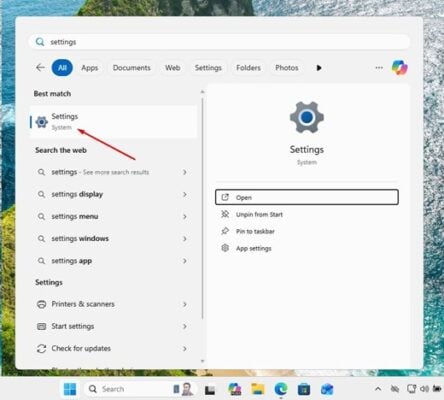
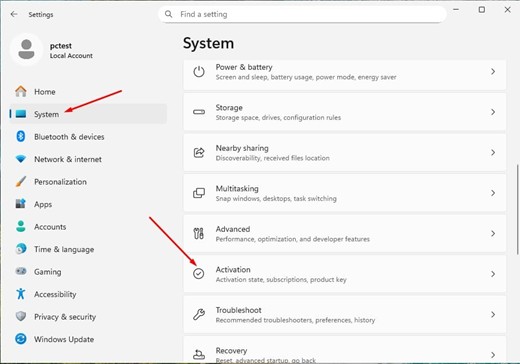
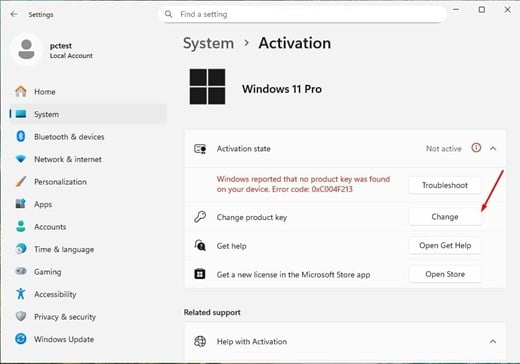
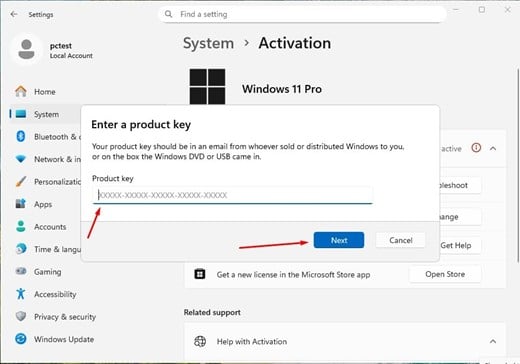
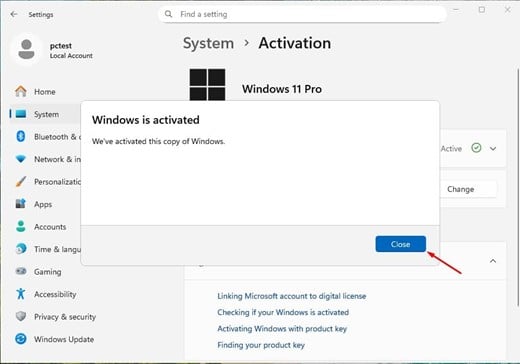
This way your operating system is correctly activated.
Upgrade from Windows 11 Home to Windows 11 Professional
To upgrade from Windows 11 Home to Windows 11 Professional you can use a generic product key for the initial upgrade. This code does not permanently activate Windows, but only allows switching to the Pro edition. Afterwards you can enter the purchased license key to fully activate Windows.
The procedure is as follows:
1. Go to Settings
- Open Settings > System > Activation.
2. Change the product key
- Select “Change product key” and enter the generic code for Windows 11 Professional: VK7JG-NPHTM-C97JM-9MPGT-3V66T.
- Press “Next” and follow the instructions. The upgrade to the Pro edition is now starting.
- If you receive any of the following error messages on the screen, temporarily disable the internet connection and repeat this step. Your PC will automatically restart. After restarting, you can re-enable the internet connection and proceed with the next steps.
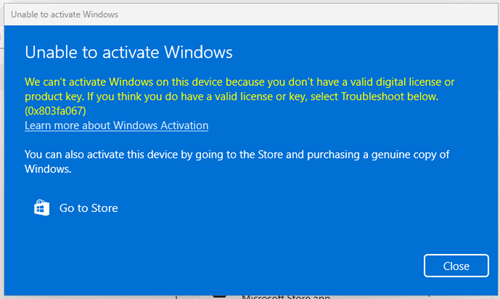
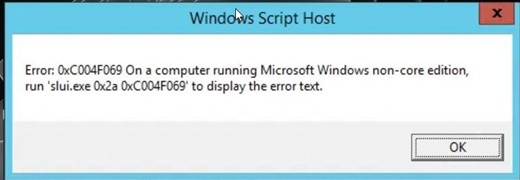
3. Enter the purchased activation key
- Once the system has been updated to Windows 11 Pro, go back to Settings > System > Activation.
- Select “Change product key” again and enter the purchased Windows 11 Pro license key.
- Follow the instructions to activate the license.
4. Restart the device if necessary
- After activation the system may ask you to restart so that all changes are applied.
- When you follow these steps, you will have an activated Windows 11 Pro on your device.
Upgrade from Windows 10 Pro to Windows 11 Pro
Check the requirements:
Download from Microsoft: https://aka.ms/GetPCHealthCheckApp
- Install the application and start it.
- The application indicates whether your computer meets the requirements (TPM 2.0, Secure Boot, compatible CPU, etc.).
- If everything is in order, proceed to the next step.
Once you have checked and confirmed that everything is in order, we can proceed to update your operating system.
Use the Windows 11 Installation Assistant
- Download via: https://www.microsoft.com/software-download/windows11
- Click on “Download now” (Download now) under “Windows 11 Installation Assistant”.
- Run the installation file (Windows11InstallationAssistant.exe).
- Accept the terms → the assistant will download and perform the upgrade from your Windows 10 Pro to Windows 11 Pro, preserving your programs’ and files.
Clean installation
IMPORTANT NOTE:
This installation guide is intended for users who wish to perform a clean installation of Windows 11 on a new or existing hard drive. This requires technical knowledge at an intermediate or advanced level. If you have no experience with clean installations of operating systems, we recommend having the procedure performed by an expert to avoid errors or data loss.
If you already have an installation of Windows 11 Home and you only wish to upgrade to Windows 11 Professional, then follow the procedure described in the section “Upgrade from Windows 11 Home to Windows 11 Professional”.
Requirements
- An empty USB stick with a storage capacity of at least 8 GB.
- A computer with Windows 10 or Windows 11 (to create the installation media).
- Back up all your files before you begin, as this procedure will format the drive and delete all existing data.
- Keep your important files. A clean installation formats the hard drive and erases all previously saved information.
- Make sure you have access to your passwords, files, and licenses before proceeding.
Step 1: Download the Media Creation Tool
Download the official Microsoft program that allows you to create a bootable USB stick.
- Download the Microsoft Windows 11 installation file by clicking the “Download” button at the top of this guide.
- Run the downloaded file.
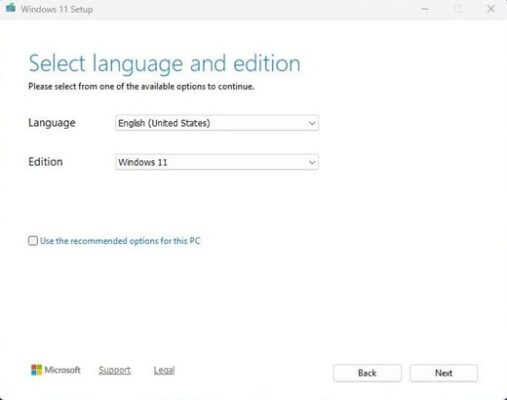
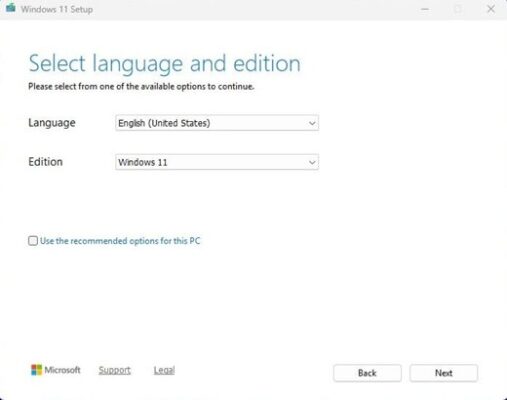
Note: when launching the tool, three initial configuration windows appear (accepting changes, accepting terms, selecting language and Windows version). Follow the on-screen instructions.
Step 2: Create the ISO file or install directly to a USB stick
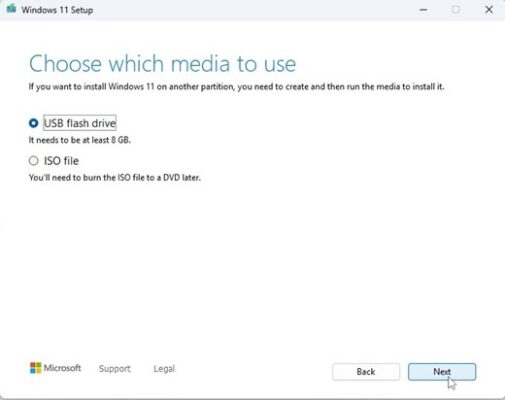
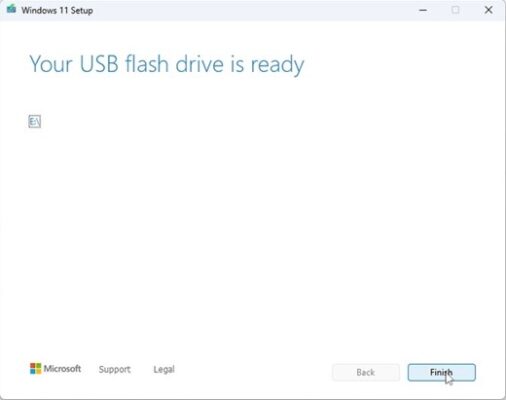
Under “Choose which media you want to use” you see two options:
USB stick:
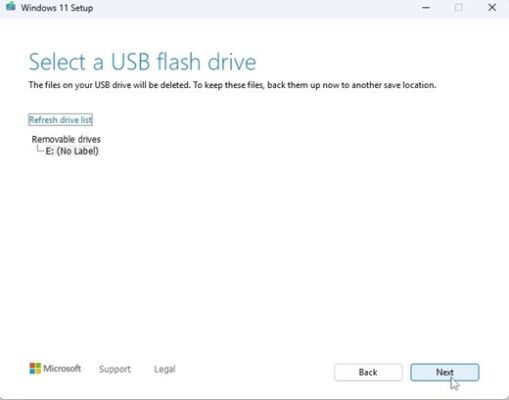
Connect the USB stick to your PC, after which Windows 11 will be automatically downloaded to the stick
Step 3: Start the installation of Windows 11
- Connect the USB stick with the installation USB to the computer.
- Turn on the computer and open the BIOS or the boot menu.
- Set the boot order so that the USB stick is used as the first boot option.
- Save the changes and restart the computer.
Note: consult your device's manual for the procedure to open the boot menu. This varies by manufacturer (F2, F12, ESC, DEL, etc.).
“Select language and edition”
Choose the language of the operating system and the 64-bit architecture.
Note
Microsoft has gradually phased out support for a number of older products. Activations by phone are therefore no longer possible. If you encounter problems or have questions during installation, you can contact our customer service, which is available 24/7.
For faster support, you can also contact us directly via our live chat, also available 24/7 on our website.
No solution found?
For activations on multiple devices, follow this guide on each device on which you wish to activate the program.
We wish you a successful installation. If you still have problems or questions about the installation, do not hesitate to contact our customer service at any time. We will help you as soon as possible.