
Make an old laptop faster with Windows 11: practical steps that help
A laptop that starts up slowly does not automatically need a new Windows edition. You may be searching for ‘windows 11 home to pro upgrade’ in the hope of more speed, but an upgrade from Home to Pro does not by itself make older hardware faster. First finding out where the delay is will benefit you more.
Does Windows 11 respond slowly, do programs open with a delay and are you unsure which settings you can safely adjust? The cause may lie with apps that start up alongside Windows, little free storage space, or hardware that struggles with your daily tasks. Targeted checks prevent you from carelessly changing settings that are better left alone.
In this article you will read how to track down the biggest cause of slowdown and Windows 11 check step by step. You will discover how to limit unnecessary startup apps, free up storage space and check whether updates are ready. We also explain when persistent slowness requires further investigation. This way you know which actions you can perform yourself and when a more thorough check is needed.
Key Points
- Use Task Manager to see which apps and system resources may be contributing to the slowdown.
- Start with simple steps, such as disabling unnecessary startup apps and checking storage space.
- Save open work and leave personal files untouched before you change your settings.
- If your laptop remains slow after the checks, a professional diagnosis can help find the cause.
- Are you considering upgrading Windows 11 Home to Pro? Keep in mind that a different edition by itself does not make slow hardware faster.
Why is your old laptop slow with Windows 11? Start with the symptoms
Does your laptop start up slowly? Do apps keep hanging or does Windows only respond to a click after a few seconds? These signs do not automatically point to one problem. An app that remains active in the background, little free storage space and limited hardware can all cause similar delays.
Also pay attention to when it happens. A short delay after signing in or after opening multiple programs can be temporary. If your laptop also remains slow when few apps are open, or if the problem returns regularly, then the cause deserves more attention. Start with the diagnosis and only optimize afterwards. That way you adjust settings more precisely and avoid unnecessary changes.
Which signs point to a software problem?
Does the laptop slow down especially right after signing in or as soon as you use several apps at the same time? Then programs in the background may be using part of the memory and processor time. That is an indication, not proof. Note which apps are open and whether the slowdown decreases after a few minutes. Also write down when you first noticed the problem and which changes preceded it, such as installing an app or an update. That way you can later investigate more specifically what changed.
When can the hardware be the limitation?
Low free storage space can make your laptop feel less responsive. Limited memory can also become noticeable when you use multiple apps or large files at the same time. Yet one program opening slowly does not prove that something is defective. Check whether the delay occurs in different apps and persists after a restart. Note your observations before you change settings or have components checked. That gives you a clearer starting point.
Keep your observations simple: when does the laptop become slow, which apps are active then, and does the problem return? That approach aligns with performance tuning, where you first determine where performance is being lost and only then intervene. Are you thinking about upgrading windows 11 home to pro? A different Windows edition changes which features are available, but does not automatically make a slow laptop faster. So first determine whether you are dealing with software, storage, or a possible hardware limitation.
How to identify the cause of slow performance in Windows 11
You don't have to guess why your laptop is slowing down. Task Manager and the storage settings give you an initial picture of active programs and the available space. Check that information while you notice the slowdown. A snapshot when the laptop is running smoothly tells you less.
What does Task Manager tell you about your laptop?
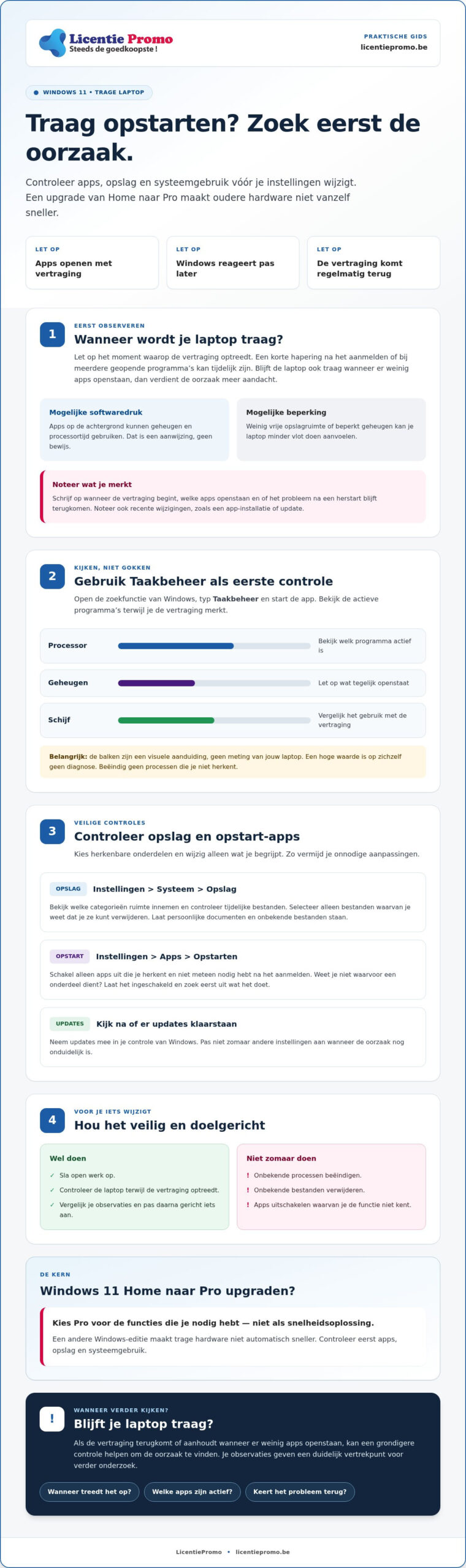
Open the Windows search function, type Task Manager and start the app. Look at which programs are active and pay attention to the columns Processor, Memory and Disk. These show how much of those system resources is being used at that moment. If you see a high value, note which app is active and check whether the usage changes later. Do not just end processes you do not recognize. Some are needed for Windows or a program to work properly.
How do you check storage and background activity?
Go to Settings > System > Storage to view storage usage. You can also check temporary files there. First look at which categories take up space and select only files that you know you can delete. Leave personal documents and unknown files alone.
Check startup apps via Settings > Apps > Startup. Only disable apps that you recognize and don't immediately need when you sign in. Not sure what an item is for? Leave it enabled and first find out what it does. Disabling an unknown component can cause more problems than it solves.
A high value in Task Manager is an indication, not a diagnosis of a defect. Check whether that value coincides with the slowdown and whether the same app or storage category stands out more often. That way you can distinguish temporary busyness from a pattern that deserves further investigation.
Are you considering upgrading windows 11 home to pro? Do it for the Windows Pro features you need, not as a solution for a laptop that responds slowly. If you want to look at the edition, you can find more about the Windows 11 Pro License here. An edition upgrade does not replace a diagnosis of apps, storage or hardware.
Which solutions really help, and what does not make your laptop faster?
The best step depends on what you have determined. A restart can end temporary congestion. Limiting startup apps helps especially when many programs start at the same time during sign-in. Cleaning up storage is useful when your disk becomes full. Windows updates can resolve problems, but no single step guarantees a fixed speed gain.
Which software adjustments are a safe first step?
Start with simple checks that you can undo. Save your open work and restart your laptop. Then check via Settings > Windows Update whether updates are ready. Let updates install carefully and do not interrupt the process unnecessarily. After the restart, check whether the issue still occurs.
Do programs start at sign-in that you don't need right away? Use Settings > Apps > Startup to disable only apps you recognize. This prevents you from accidentally disabling an unknown system component. Check under Settings > System > Storage which temporary files you can clean up. Review the selection first and do not delete personal documents. Test again after each step so you notice which change makes a difference.
When is optimizing not enough?
Do apps keep crashing, does the lag keep coming back, or do warnings appear? Note down when this happens and what message you see. If simple checks do not provide clarity, a qualified technician can examine the laptop further. That is wiser than randomly deleting settings or files.
Windows editions change the available features, not the speed of your hardware. So even if you are considering upgrading windows 11 home to pro, you should not expect a solution for a slow laptop. Windows 11 Pro may be suitable if you need the features of that edition. View the Windows 11 Pro License if you want to compare editions, but treat a persistent performance problem separately. Choose a measure that matches your observations and have unexplained issues specifically checked.
Make Windows 11 faster step by step with safe checks
Work calmly and change one thing at a time. This way you can see what has an effect and you can more easily undo a change. Save open documents before you start. Leave personal files untouched and do not delete anything whose function you do not know.
Which steps should you perform first?
- Step 1: restart your laptop. After signing in again, open the apps you use often. Note how long signing in and opening take. This gives you a simple starting point.
- Step 2: check Windows Update. Use the Windows search function to find Windows Update and see if any updates are ready. Follow the on-screen instructions and do not interrupt the installation. Test your laptop again when Windows reports that the update is complete.
- Step 3: review the startup apps. Search in Windows for the startup apps settings. Only disable programs you recognize and do not need as soon as you sign in. Restart and check whether signing in goes more smoothly.
- Step 4: check the storage. Search via Windows settings for Storage and view the temporary files. Check the selection before you delete anything. Keep personal documents out of the cleanup selection.
After each step, test the same tasks, for example signing in, opening your browser and loading a document. If nothing changes, do not randomly adjust additional settings. Note down what you have already tried. This way you do not repeat the same change and you know which steps preceded a problem.
How do you avoid unnecessary risks during cleanup?
Use the built-in Windows settings for updates and storage management. Be careful with unknown cleanup programs: you may not know which files or settings they modify. Do not delete system files and do not modify the registry to seek speed gains. If you do not understand a notification or setting, stop and first look for reliable explanation or help.
Restart first, install updates, check recognizable startup apps and then review temporary files. That order starts with simple checks and builds up calmly. The result depends on the cause; a fixed speed gain cannot be promised in advance.
Are you considering upgrading windows 11 home to pro? Choose Windows Pro for the features you need, not as a solution for a slow laptop. View the Windows 11 Pro License if you want to compare editions.
Is your laptop still slow? Choose a sensible next step
Have you restarted Windows, installed updates, and checked recognizable startup apps, but your laptop is still slow? Repeat the checks when the problem occurs and look for patterns. Does the slowdown occur every time with the same task, after signing in, or when you open certain apps? That information helps you determine what your next step is.
When should you have the laptop checked further?
Do apps keep freezing, does Windows regularly stop responding, or do error messages appear? Then ask a qualified technician for help, especially when simple checks do not explain the problem. Beforehand, note the message as precisely as possible, when it appears, and which apps are open. Also mention which checks you have already performed. This gives the technician a useful overview to start with.
This article helps you recognize possible causes, but does not diagnose your device. A recurring complaint can have various causes. Therefore, avoid drastic changes based on a single observation. If you remain in doubt, first have it checked whether it concerns software, storage, or a hardware limitation. That way, you choose a next step based on information, not on guesswork.
When is a different Windows edition relevant?
You choose an upgrade to use the features of a different edition, not to make a laptop faster. upgrading windows 11 home to pro therefore does not replace a hardware check and does not automatically resolve persistent slowdown. If you do not need specific Pro features, an edition upgrade based on speed alone is not a suitable solution. First investigate why your laptop remains slow.
Have you determined that you need the features of Windows 11 Pro ? Then compare the edition with what you use today and decide whether an upgrade suits your usage. If desired, view the Windows 11 Pro License. Do not expect any performance improvement from it. If the cause remains unclear, gather your notes and discuss them with a qualified technician.
Take the right next step for your laptop
First find out when the delay occurs and test safe adjustments one by one. Does your laptop remain slow after updates, a restart, and simple checks? Note error messages and, if necessary, have the cause examined. A Windows edition upgrade does not replace hardware diagnostics.
upgrading windows 11 home to pro is mainly relevant if you need Pro features, not to make your laptop faster. LicentiePromo sells legal Microsoft licenses at heavily reduced prices, with activation guarantee and the option of a refund. A license without a subscription can be suitable if you want to avoid recurring subscription payments.
Would you like to Windows 11 Pro view? Discover LicentiePromo's Windows licenses. The digital license is delivered by email after payment. Compare the edition with what you need and tackle the cause of the slowdown step by step.
Frequently asked questions about a slow laptop with Windows 11
How do I make an old laptop faster with Windows 11?
Start with a restart and then check whether Windows Update offers updates. Look at which apps start automatically and disable only programs you recognize and don’t need right away. Check via the storage settings which temporary files you can clean up. After each step, test the same tasks again. Note whether signing in, opening your browser, or loading documents is still slow. This way you can see which change may help, without adjusting multiple settings at once.
Does upgrading Windows 11 Home to Pro make my laptop faster?
No, upgrading from Windows 11 Home to Pro does not automatically make older hardware faster. The Windows edition determines which features are available, but does not automatically change the capabilities of the processor, memory, or storage in your laptop. Choose Pro only if you need the features of that edition. If your device remains slow, first check active apps, available storage space, and possible hardware limitations.
Can I delete old files to make Windows 11 faster?
You can check temporary files via Settings > System > Storage, but don't just delete everything that looks old. Review which files Windows suggests for cleanup and read the descriptions before selecting anything. Leave personal documents, photos, and files whose purpose you don't know untouched. Deleting files can free up storage space, but it doesn't guarantee a speed improvement if the slowdown has a different cause.
How do I see which apps are slowing down my old laptop?
Search in Windows for Task Manager and open the app while your laptop is responding slowly. Look at which programs are active and pay attention to the columns for processor, memory and disk. These show how much of those system resources is being used at that moment. High usage can be an indication, but does not prove a defect. Note which app is active and check whether the same pattern returns. Do not end processes you do not recognize.
Does more free storage space help with a slow Windows 11 laptop?
More free storage space can help if your disk is almost full, but it does not make every slow laptop faster. Check via the Windows settings which categories are taking up space and look at the temporary files before you clean anything up. Only delete files that you know you can do without. If the laptop remains slow when sufficient space is available, also look at active apps, updates, and other possible causes.
What do I do if my laptop is still slow after these steps?
Does the slowdown keep coming back after a restart, updates and simple checks? Note when the problem occurs, which apps are open and whether you see error messages. Also mention which steps you have already tried. Have the laptop examined further by a qualified technician if the cause remains unclear. These checks help narrow down possible causes, but do not replace a diagnosis of your device.
Is it safe to use third-party cleanup programs?
Not every cleanup program is suitable for your laptop, so be careful with tools whose operation you do not understand. Preferably use the built-in Windows settings to check temporary files and storage. With an unknown program, it may not be clear which files or settings it modifies. Do not delete system files and do not modify the registry for a quick solution. If you do not understand a choice, stop and first look for reliable explanation.