
Recovering a lost Windows product key: this is how you find your license back
What if you don't need to reactivate Windows with a product key at all? Recovering a lost Windows product key doesn't start with just any product key finder, but with figuring out how your license works. It's understandable that you're unsure: maybe your purchase confirmation is missing, or you no longer remember whether Windows was activated with a key or a digital license.
With this step-by-step plan, you first check the reliable sources. Then you look in Windows Settings to see whether your PC has already been activated with a digital license. That can make reactivation possible without you having to re-enter the 25-digit code. We also explain when a code may be stored in the firmware, which data you had better not share with unknown tools, and what you can safely do if you find nothing.
This way you avoid buying a new license too quickly. If recovery or digital reactivation does not work, a Windows 11 Pro license could be a next step. LicentiePromo states that Ron from Belgium, Bart from Belgium and 1 other customer made a purchase today. Windows 11 Pro is delivered digitally by email and has an activation guarantee. Activate the license within 30 days. Discover below which route suits your situation.
Key Points
- Start with your license type: a digital license can activate Windows without you having to find the product key.
- Search systematically in your mailbox, spam folder, Microsoft account, and purchase documents.
- When recovering a lost Windows product key, it helps to first check the activation status and then any possible firmware codes.
- Compare the Windows edition, the linked account, and the error message if activation fails.
- Only consider a new Windows license when your digital license, proof of purchase, and firmware offer no solution.
Recovering a lost Windows product key: start with your license type
A missing product key does not automatically mean that Windows will no longer activate. So don't start looking for a new key right away. First note which Windows edition is on your PC and what the current activation status is. To do so, open Settings > System > Activation in Windows 11. In Windows 10 you can find this via Settings > Update & Security > Activation. Check the edition via Settings > System > About.
A digital license can reactivate Windows after a reinstallation without you entering the product key, if the license matches your device and possibly your Microsoft account. That is not a guarantee for every situation: the Windows edition and the type of license also play a role. Therefore, note the edition, activation status, and any message before you change anything. That way you can approach recovering a lost Windows product key in a targeted manner.
Product key or digital license: which do you have?
A product key is a code you enter to activate Windows. A digital license is activation information that is linked to your PC and sometimes to your Microsoft account. As a result, Windows may already be activated without you knowing a visible code. A code in the firmware, on the other hand, is a product key that is stored in the UEFI firmware on some PCs. Read more about what a product key is.
Why you should check the Windows edition first
The edition on your PC must match the license. If it says Windows Home, then a Pro license will not simply activate that installation. Even after a reinstallation, a different edition will not activate automatically with the same license. So first check whether you are using Home or Pro. Save that information before you reinstall Windows or replace your disk.
Use this short preparation:
- Note whether you have Windows Home or Pro.
- Check whether Windows is activated and what Settings says about it.
- Note whether the message refers to a digital license or Microsoft account.
- Do not make that information public and do not share it with unknown programs’.
With this basis, you know what to look for next: a purchase code, a digital license, or possibly a firmware code. That prevents you from trying the wrong code or assuming too quickly that your license is lost.
Follow these steps to find your Windows product key
Work from the most reliable location to the more technical options. This way you avoid unnecessary programs and know which route suits your license.
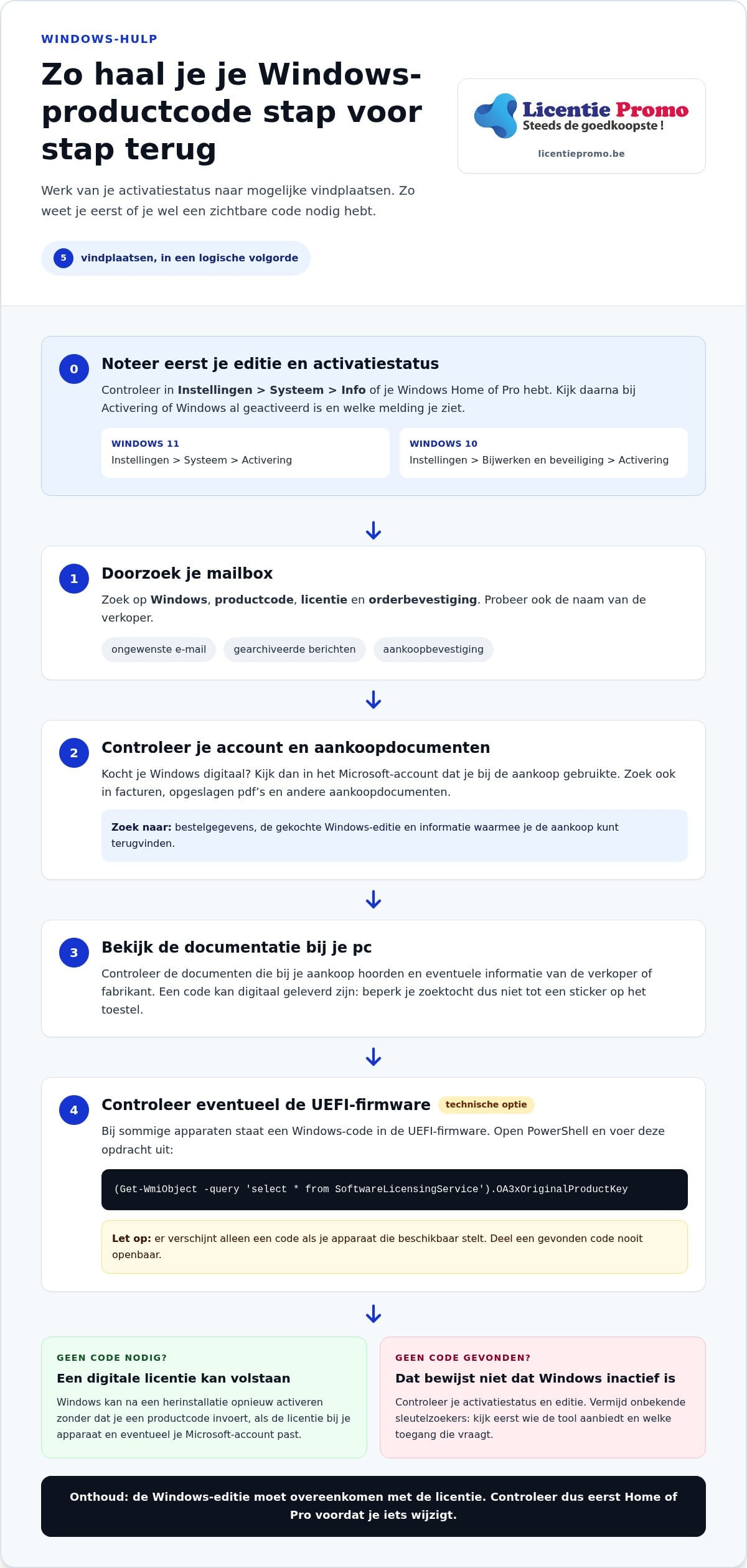
- Check the activation status. Open in Windows 11 Settings > System > Activation. If you use Windows 10, go to Settings > Update & Security > Activation. Note whether Windows is activated and whether the message mentions a digital license.
- Search your mailbox. Look for terms such as ‘Windows’, ‘product key’, ‘license’ and ‘order confirmation’. Also try the seller's name. Then check your spam folder and archived messages. An order confirmation may contain the code or details that help you trace the purchase.
- Check your account and purchase documents. If you bought Windows digitally, look in the Microsoft account you used for the purchase and search for the order details. Also check invoices, saved PDFs, and other purchase documents. Different license types have different possible locations; this explanation about license types and product keys provides additional context.
- Check the documentation that came with your PC. Review the documents that came with your purchase and any information from the seller or manufacturer. A code may also have been delivered digitally, so don't limit your search to a sticker on the device.
- Check the UEFI firmware if applicable. UEFI is the basic software that starts a PC. On some devices, a Windows code may be stored in it. Open PowerShell and run this command:
(Get-WmiObject -query 'select * from SoftwareLicensingService').OA3xOriginalProductKey. A code will only appear if your device makes it available. Never share a found code publicly.
Do not just use an unknown key finder. First check who offers the tool and what access it requests. Old commands may also not work on your system or show no result. If you do not see a code, that in itself does not prove that Windows is not activated.
By following this order, you can recover a lost Windows product key without immediately installing software of unknown origin. If after checking it turns out you do need a new Windows license, then take a look at the Windows 11 Pro license as a possible next step.
No code found? Compare digital license, firmware code, and proof of purchase
A digital license is not necessarily visible as a product code. It is activation information that Windows can use to activate the installation. A firmware code is indeed a product code, but on some suitable devices it is stored in the UEFI firmware. A proof of purchase, on the other hand, helps you to find out what exactly you bought and which edition it belongs to.
Use this comparison to choose your next check. The location and reactivation options differ per license, device, and Windows edition.
| License type | Possible location | Next check |
|---|---|---|
| Digital license | Windows activation status and possibly the linked Microsoft account | Check whether Windows is activated and whether you are signed in with the correct account. |
| Pre-installed Windows | Possibly in the UEFI firmware or in the documentation accompanying the device | Check whether your device provides a firmware code and whether the edition matches. |
| Digital purchase or separate product key | Order confirmation, mailbox, purchase account or message from the seller | Compare the purchase details with the installed Windows edition. |
When might Windows activate without a visible product key?
If Windows was previously activated on the same device with a digital license, it may be able to reactivate after a reinstallation without you entering a code. That depends, among other things, on the edition and the activation data. A Home license and a Pro installation, for example, are not automatically interchangeable. Check in Settings > System > Activation whether Windows is activated and whether the message refers to a digital license. Also check whether that license is linked to the Microsoft account you are using.
When are firmware and proof of purchase useful?
A firmware code is primarily a possible indication on a device on which Windows was pre-installed. Not every device contains such a code, and an empty search result does not prove that you do not have a valid license. For a digital purchase, your proof of purchase is often the most useful next step: look for the order confirmation, order details, and any code in the original communication from the seller.
Only use documents and messages whose origin you can verify. Note the edition, the device, and what Windows states during Activation. This makes recovering a lost Windows product code more concrete and prevents you from confusing a code, license, or edition with one another.
Windows product key found but activation fails? Check this
Finding a code is step one. Windows must also recognize the correct edition, and the license must match your situation. Therefore, do not immediately re-enter the code. First check the message and your activation details. This way, you avoid repeated attempts without knowing where the problem lies.
Check edition, device, and activation message
- Compare the editions. Check whether your license is for Windows Home or Pro and whether that same edition is on your PC. A Home key will not simply activate Windows Pro.
- Check the activation status. In Windows 11, go to Settings > System > Activation. In Windows 10, you can find this via Settings > Update and Security > Activation.
- Check your account. If Windows lists a digital license under a Microsoft account, sign in with the account linked to that license.
- Write down the error message. Note the full text or error code and when the problem started, for example after a reinstallation or change to the PC. Keep that information private.
If the Troubleshooter option appears under Activation, you can use it to investigate activation problems. The tool can be relevant, among other things, after a major hardware change. Follow the on-screen instructions and check that you are signed in with the correct Microsoft account. The troubleshooter can help, but it does not guarantee that every license will reactivate.
Protect your data during recovery
Never share your full product code on a public forum or in a screenshot. Also do not show passwords, order details, or other personal information. An unknown key finder or download is not a safe default solution. Use it only if you can trust its origin and operation. Stop if a program unexpectedly asks for sensitive data.
Before considering a new license, check the Windows edition, activation status, linked account, and full error message. Compare that information with your proof of purchase and only then use the appropriate recovery step.
Did you buy your license from LicentiePromo and does activation keep getting stuck? Have your purchase details and error message ready and check the customer service for the next step. Do not share your product code in public messages.
No Windows product key found? Choose a reliable next step
Not finding a code is not in itself a reason to immediately buy a new license. First check the three possible leads: your digital license, your proof of purchase, and any code in the firmware. Also check whether the Windows edition on your PC matches the edition for which your license is intended.
- Check the activation status. Windows can be activated with a digital license without you finding a readable product key.
- Check your purchase details. Check your mailbox, spam folder, order confirmation, and the account you used for the purchase.
- Check whether your device contains a firmware code. Such a code is only available on suitable devices. So no result does not automatically mean your license is invalid.
- Compare edition and license. A license for Windows Home is not automatically suitable for Windows Pro, or vice versa.
Only when you cannot determine a usable digital license, purchase details, or firmware code and reactivation fails, can a new valid license be a possible solution. That is not automatically necessary just because you have forgotten the original code. This way, you make recovering a lost Windows product code a well-considered decision instead of a quick purchase.
When can a new license be a solution?
Consider a replacement only if your existing license turns out to be unavailable or cannot be reactivated. LicentiePromo is an independent reseller and sells legal Microsoft licenses. This does not mean that LicentiePromo is a partner of Microsoft. View the Windows 11 Pro license if you need a license for that edition. Before purchasing, check whether Windows 11 Pro suits your device and situation.
What can you expect from LicentiePromo?
After payment, you will receive the license digitally by email. LicentiePromo offers an activation guarantee. Activate your license within 30 days. Keep your order confirmation and follow the activation steps carefully. This way you have your purchase details at hand if you need them.
Have you checked that a replacement license is the right step? View the Windows 11 Pro license and purchase information, or go to LicentiePromo's customer service for questions about a purchase.
Find the right next step for your Windows license
A missing code does not immediately mean that you can no longer activate Windows. First check whether Windows is already using a digital license. Then search your mailbox and purchase documents, and only after that check whether your device contains a code in the firmware. This is how you approach recovering a lost Windows product code step by step, without buying a replacement license too quickly.
If reactivation does not work and your existing license turns out to be unavailable, a new license for the correct Windows edition may be a possible solution. LicentiePromo sells Windows 11 Pro as an independent reseller, with digital delivery by email after payment and an activation guarantee. Activate the license within 30 days.
Do you need Windows 11 Pro ? View the Windows 11 Pro license from LicentiePromo and choose your next step with confidence. You now have a clear plan to recover your license or proceed safely!
Frequently asked questions about your Windows product code
Can I activate Windows without my product code?
Yes, that is possible if your PC has a digital license. Windows can then reactivate without you entering a code, for example after reinstalling the same edition. Check at Settings > System > Activation whether Windows is activated and whether a digital license is listed. Reactivation is not guaranteed: your edition, device and linked Microsoft account can play a role.
Where can I find my Windows product code?
First, search your mailbox, including spam and archived messages. Use search terms such as ‘Windows’, ‘product key’, ‘license’ and ‘order confirmation’. Then check your Microsoft account, purchase documents and messages from the seller. On some PCs where Windows was pre-installed, a key may be stored in the firmware. Not every device contains such a key. Never share a found key publicly.
Can I retrieve my Windows product key via PowerShell?
On suitable devices, PowerShell can display a Windows code stored in the UEFI firmware. Open PowerShell and run (Get-WmiObject -query 'select * from SoftwareLicensingService').OA3xOriginalProductKey . If no code appears, that does not automatically mean you do not have a valid license. The code may be missing or unreadable. Keep any displayed product code private and do not post it on a forum.
What happens if I lose my Windows product code after a reinstallation?
Windows can reactivate after a reinstallation with a digital license, especially when you install the same edition as before. Check the activation status in Windows Settings and sign in with the Microsoft account that may be linked to the license. If activation does not work, note the full error message and use the Activation Troubleshooter if it appears. A new code is not automatically required.
Is a product key finder safe for recovering my Windows code?
Not every product key finder is reliable. An unknown program may request access to your PC or data, so do not just install a tool you find online. First check the origin and what the program does. It is better to start with Windows Settings, your purchase email, and your account. Never share your full product key, password, or personal purchase details on public forums or in screenshots.
Should I buy a new Windows license if I cannot find my key?
No, not just because you've lost the code. First check whether Windows is already activated with a digital license, look up your proof of purchase, and see whether your device contains a firmware code. If your existing license turns out to be unavailable or reactivation fails, a new license for the correct Windows edition can be a next step. That's how you approach recovering a lost Windows product code without replacing it too quickly.
Can I use a Windows product code on another computer?
That depends on the license type. An OEM license, which often comes with a pre-installed Windows version, is usually tied to the original device. A separate retail license may, according to the terms, possibly be transferred to another PC after you remove it from the old PC. Also check whether the Windows edition matches. A digital license is not automatically transferable just because you know the code.