
Transferring your Windows license to a new PC: here's how to do it step by step
Can you take your old Windows license to your new PC? First check which type of license you have before buying a new code. With transferring Windows license to new PC that makes a big difference: a Retail license can usually be moved, while an OEM license is tied to the original computer.
Are you unsure whether your license is still usable, or are you getting an activation error? The rules around Retail and OEM are not always clear. With a few checks, you can see whether your license is transferable and what you need to activate Windows on your new PC.
In this guide, you will learn how to check your license type, prepare a transferable license, and reactivate Windows. We will also look at how to activate a digital license through your Microsoft account and what you can do if that does not work. If your license is not transferable, you will discover what to look out for when choosing a new activation code.
Key Points
- Check your license type: this determines whether you can transfer your Windows license to a new PC.
- Look up your product code and link a digital license to your Microsoft account for smoother reactivation.
- Prepare your old PC and install the same Windows edition on the new computer as the one your license is valid for.
- If you get an activation error, first check the edition and error code. An OEM license is usually tied to the original computer.
- Is transferring not an option? Then check out the Windows 11 Pro License from LicentiePromo, with delivery within five minutes and activation guarantee.
Is it possible to transfer your Windows license to a new PC?
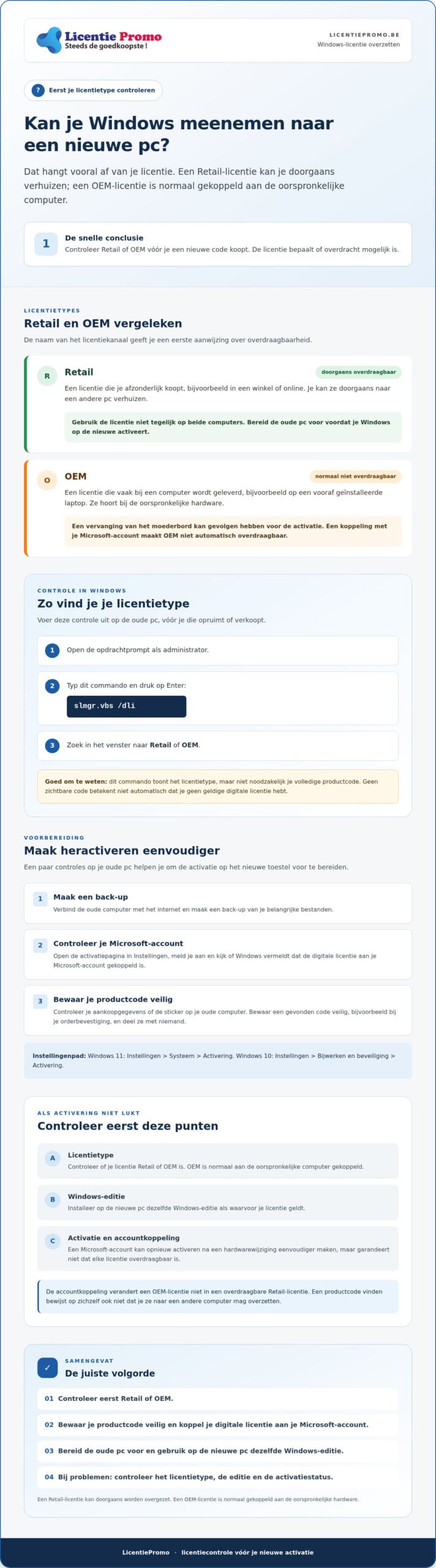
Yes, but it depends on your license type. A retail license can usually be transferred to a new PC. An OEM license, which is often supplied with a computer, is tied to the original hardware and is normally not transferable. So first check which type you have. That way you avoid buying a new activation code while your existing license is still usable.
During activation, Windows checks whether the license matches the device. The page about Windows product activation explains how Microsoft recognizes licenses and hardware. A digital license can be linked to your Microsoft account. That often makes reactivating after a hardware change easier, but it does not automatically turn an OEM license into a transferable Retail license.
The difference between Retail and OEM
Retail is a license that you purchase separately, for example in a store or online. You can usually move it to another PC. Do not use it on both computers at the same time, and prepare the old PC before activating the license on the new one.
OEM
This is how you check which type of license you have
Check the license channel before you clean up or sell the old PC. Follow these steps:
- Open the command prompt as administrator.
- Type
slmgr.vbs /dliand press Enter. - Read the window that appears and look for Retail or OEM.
If it says Retail, you can usually prepare the license for transfer. If you see OEM, it is tied to the original computer. This command shows the license type, but not necessarily your full product key. Keep that key separately if you have it, for example with your purchase details, and do not share it with anyone.
If your license is transferable, you can first try to move it and only consider another Windows license if that doesn't work or your current license isn't suitable. In the next section, you'll read how to find your product code and prepare the activation.
Finding and preparing your current Windows product key
Prepare your old PC before transferring the license. Connect the computer to the internet, back up your important files, and check whether Windows is linked to your Microsoft account. This way, you can verify on the new PC whether your digital license can be reactivated. Writing down a product key is also wise, although not every digital license shows a code.
Link your license to your Microsoft account
Open the settings and go to the activation page. In Windows 11 you can find it via Settings > System > Activation. In Windows 10 it is located under Settings > Update & Security > Activation. Sign in with your Microsoft account and check the activation status. The message that Windows is activated with a digital license linked to your Microsoft account is the confirmation you are looking for.
Linking an account can make reactivation after a hardware change easier, but it does not guarantee that every license is transferable. Microsoft explains the process in the official steps from Microsoft. Keep your old PC online while you prepare and check the license.
Find your product key safely
Can't find the code right away? First check your purchase details or the sticker on the old desktop or laptop. A code stored in the computer firmware can sometimes be read with PowerShell. Open PowerShell and enter this command:
(Get-CimInstance -ClassName SoftwareLicensingService).OA3xOriginalProductKey
The command can display a code stored in the firmware. If you get no result, that does not automatically mean that Windows does not have a valid license. A digital license does not need to have a visible product key. Tools such as ProduKey can sometimes display codes, but only download such programs from a reliable source and do not share the code you find.
Store the code safely, for example in a password manager or with your order confirmation. Don't just put it in a public document or message. A found product code does not by itself prove that you may transfer it to another computer. So first check the license type.
Only start transferring a Windows license to a new PC once your files are safe and your account and license details have been checked. That way you limit the chance of surprises during activation.
The steps to effectively transfer your Windows license
The following steps are intended for a transferable Retail license. First check whether the new PC uses the same Windows edition as your license, for example Pro. A Home license does not activate Windows Pro. Tom’s Hardware explains the difference between Retail and OEM licenses in more detail.
Step 1: prepare the old PC
On the old computer, open the command prompt as administrator. Run this command and confirm the message:
slmgr.vbs /upk
This command removes the product key from the old Windows installation. If you also want to erase the key from the registry, run slmgr.vbs /cpky afterwards. These commands do not make an OEM license transferable. Also do not use the license to activate Windows on two computers at the same time.
Step 2: install the same Windows edition
Install the edition that matches your license on your new PC. Keep your Retail code at hand. Enter it during installation if Windows prompts you to, or skip that step and activate later via the settings. Don't just choose a different edition: a code for Windows Pro, for example, will not automatically activate Windows Home.
Step 3: activate with your account or product code
Sign in on the new PC with the same Microsoft account to which your digital license is linked. Open Settings > System > Activation and start the troubleshooter. Choose I recently changed the hardware on this device and follow the instructions. This option is intended for a digital license linked to your account. It does not bypass the limitations of an OEM license.
Automatic activation not working? In the same activation menu, go to Change product key and enter your Retail key. Check that you have entered the code correctly and that the installed edition matches your license.
Step 4: check the activation status
Go back to Settings > System > Activation and check whether Windows indicates that it is activated. If you get an error message, note the error code before trying further steps. This will help you pinpoint where the activation process is getting stuck.
With this approach, you can transfer your Windows license to a new PC without immediately buying a new code. If your license turns out not to be transferable, check whether a Windows 11 Pro license matches the edition you want to activate.
What if transferring your Windows license doesn't work?
An activation error does not immediately mean that your license is lost. First check whether you installed the correct Windows edition and whether your Retail license is not still active on the old PC. Also note the full error code. It can help explain what is going wrong.
Check the error code and your Windows edition
Error code 0xC004C008 can indicate that the product key is already being used on another device or that Windows does not accept the activation. Therefore, check whether you have removed the license from the old PC and whether your new computer is using the Windows edition for which your key is valid. A Pro key does not activate a Home installation, and vice versa.
After a major hardware change, such as a new motherboard, Windows may recognize the computer as a different device. Sign in with the Microsoft account linked to the digital license and try the activation troubleshooter. If the error keeps recurring, contact Microsoft support and ask what activation options are available for your situation. Phone activation or help via support is not a guaranteed solution.
Know when your license cannot be transferred
An OEM license is tied to the original computer. A new motherboard or a completely new PC can mean that you cannot reactivate that license. A Microsoft account does not change the license type. Also, a product key that you find online is not automatically transferable or reliable. Before purchasing, check which type of license you are getting, where it comes from, and what activation guarantee the seller offers.
Have you checked that you are using a valid Retail license, that the Windows edition is correct, and that you have tried the troubleshooter? If you still get the same error, further attempts are unlikely to help. A new license could then be a solution. Choose a provider that is clear about the origin and activation conditions, not just the first cheap code you come across.
Is your old license OEM or does activation keep failing? Then take a look at the Windows 11 Pro License from LicentiePromo. LicentiePromo sells legal licenses with an activation guarantee and delivery within five minutes. First check whether Windows Pro is the right edition for your PC and review the terms before you order.
Buying a new Windows license without paying full price
If your old license turns out to be tied to your previous computer, you cannot simply take it with you. Compare the origin and terms of available licenses and see whether a one-time purchase suits you better than a subscription. LicentiePromo sells Windows licenses and offers a Windows 11 Pro license with permanent activation and activation guarantee.
After purchase, you will receive the license digitally within five minutes. Before activation, check whether your new PC is ready for Windows 11 Pro and whether the installed Windows edition matches the license.
Why choose Windows 11 Pro?
Windows 11 Pro may suit a home computer or your work as a self-employed person. The features include Firewall and network security, Secure Boot and Snap Groups, among others. Secure Boot helps ensure that only trusted software starts the computer. With Snap Groups you can minimize or reopen apps together. View the Windows 11 Pro license and check the system requirements and the edition on your PC before you order.
You buy a license with permanent activation, not a subscription that keeps renewing. The right choice depends on what you need and whether your computer Windows 11 Pro supports. So compare not only the purchase type, but also the activation terms and warranty.
The certainty of LicentiePromo
LicentiePromo sells legal Microsoft licenses at heavily reduced prices. The licenses come with an activation guarantee and the option of a refund. Read the terms and follow the activation steps if you encounter a problem after purchase.
Would you like to read other customers' experiences? Then check out the LicentiePromo reviews. The license is a one-time purchase, without monthly renewal. Compare those terms with a subscription and choose what suits your usage. If after checking you know you need a new license, this is an alternative to activate your new PC. If you received an error message earlier, save the error code and follow the activation steps carefully.
Get your new PC ready for Windows
Whether you can transfer a Windows license to a new PC depends first on your license type. A Retail license can usually be moved. An OEM license remains tied to the original computer. So check your license and Windows edition before reactivating or buying another code.
If the transfer doesn't work, you don't have to immediately opt for a subscription. LicentiePromo offers a Windows 11 Pro license as a one-time purchase, with permanent activation and activation guarantee. You receive the code by email within five minutes.
Ready to activate your new PC? View the Windows 11 Pro license from LicentiePromo. First check whether Windows 11 Pro is compatible with your PC and read the activation terms. That way you choose a license that matches the edition you want to use.
Frequently asked questions about Windows licenses
Can I transfer a Windows 10 license to a Windows 11 PC?
This is possible if your license is transferable, usually a Retail license. An OEM license remains tied to the original computer. Also check whether your license matches the Windows edition. A Windows 10 Pro license is not the same as a Home license. Even with a transferable license, Windows may perform an activation check. Follow the activation steps on the new PC and use the troubleshooter if necessary.
What is the difference between a digital license and a product key?
A product key is a code that you use to activate Windows. A digital license is an activation method that can be linked to your device, and sometimes also to your Microsoft account. You then do not always need a code to reactivate Windows. The terms are not the same: a product key is a series of characters, while a digital license records the right to activate Windows on a device.
How often can I transfer my Windows license to a new PC?
There is no universal number that applies to every license. You can normally move a Retail license to another PC, but do not use it on multiple computers at the same time. First remove the key from the old installation and then activate the license on the new PC. OEM licenses are tied to the original hardware and are normally not transferable. Check the terms of your license if you are unsure.
Do I need to buy Windows again if I replace my motherboard?
That depends on your license type. An OEM license is tied to the original hardware, so replacing the motherboard can cause activation problems. A retail license can usually be reactivated. If your digital license is linked to your Microsoft account, sign in on the device with the same account and try the activation troubleshooter. If that doesn't work, ask Microsoft support what options are available for your license.
Is it legal to buy a cheap Windows license in Belgium?
A low price alone does not tell you whether a license is legitimate. Check who the seller is, what the origin and terms of use are, and whether you receive proof of purchase. An activation guarantee is useful, but by itself does not prove the origin of a license. LicentiePromo sells legal Microsoft licenses. Read the seller's terms before ordering and activate the code according to the instructions.
What happens to the Windows license on my old PC after the transfer?
With a transferable Retail license, you remove the key from the old Windows installation before activating the license on the new PC. Windows can remain on the old computer, but the transferred license may not be used on both devices at the same time. Removing the key does not automatically erase your personal files. Therefore, make a backup in advance and check on the new PC whether Windows is activated.
What should I do if Windows says the license has already been used on another device?
First, check whether the new PC uses the same Windows edition as your license. Remove the license from the old computer if it is a transferable Retail license. Then sign in with the Microsoft account to which the digital license is linked and run the activation troubleshooter. If the message keeps appearing, note the error code and contact Microsoft support. Normally, you cannot move an OEM license to another PC.
How long do I have to activate my new Windows license?
That depends on the seller and the terms of the license. Check the activation period and instructions with your order and do not postpone activation unnecessarily. Make sure the new PC has the correct Windows edition and keep your product code or Microsoft account details at hand. If you get an error message, note the code and ask for help according to the seller's terms.