
Windows 11 Pro download and activate: the complete step-by-step guide for 2026
The transition to Windows 11 Pro is no longer a luxury, but an absolute necessity for anyone who wants to work safely and efficiently! You probably recognize it: you want to upgrade for those powerful business features, but the fear of a failed activation or technical hassle with TPM 2.0 requirements holds you back. No one wants to deal with data loss or an invalid license after an hours‑long installation. We at LicentiePromo understand that all too well. You just want it to work, without hassle and without spending fortunes on software.
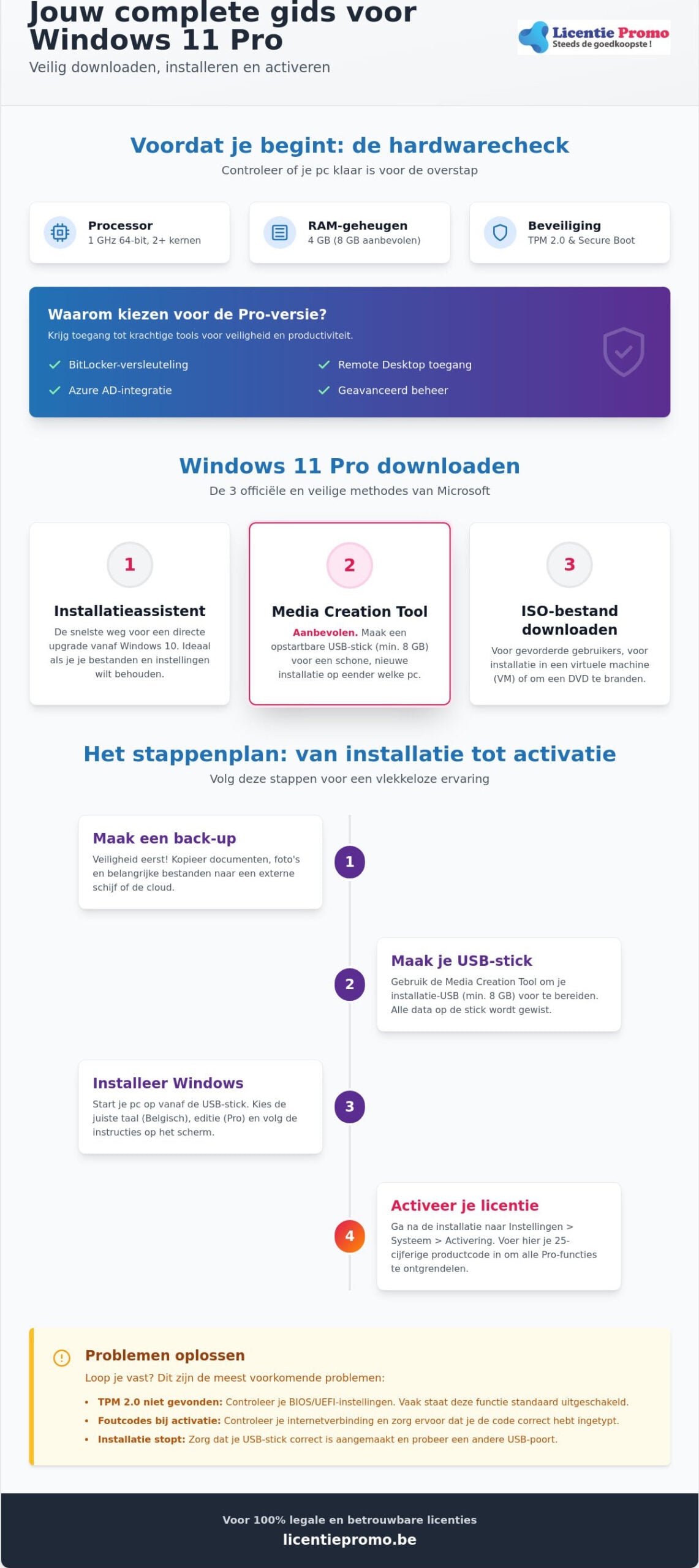
No panic. Windows 11 Pro download and activation is a breeze if you use the right method! In this complete guide for 2026 you will learn how to safely obtain the officiële software, install it smoothly and activate it immediately with a 100% legal license. We guide you step by step through the process, from the hardware check to the final activation. This way you enjoy a lightning‑fast, perfectly working system with maximum security and all Pro benefits. You are only a few minutes away from the most stable Windows experience ever!
Key Points
- Check whether your hardware is ready for the transition by checking the specific requirements for TPM 2.0 and Secure Boot.
- Learn how to download and activate Windows 11 Pro via the official installation assistant or the Media Creation Tool.
- Follow our step-by-step guide to boot your PC from a USB stick and select the correct Belgian language settings.
- Get immediate access to all powerful Pro features by entering your 25-digit product code correctly in the settings.
- Avoid frustration by learning how to resolve common error codes and internet issues yourself during the activation process.
before you start: system requirements for Windows 11 Pro
Stop. Before you start hastily, you need to be sure your PC has enough power. Nothing is more frustrating than an installation that aborts halfway. Microsoft sets strict requirements for your hardware. Want to successfully download and activate Windows 11 Pro? Then a compatible machine is the absolute starting point. Use the officiële Microsoft PC Health Check app to scan your system at lightning speed. This tool tells you within seconds whether you get the green light for the upgrade.
The minimum system requirements for Windows 11 Pro are not forgiving. You need at least a 1 GHz 64‑bit processor with two or more cores. Additionally, 4 GB RAM is the absolute minimum, although we recommend 8 GB for a smooth experience. Your storage space must be at least 64 GB. Do you have an older PC? Then it is likely that your processor is not on the list of supported chips. Check this beforehand to avoid disappointment.
Security is central in this version. Therefore TPM 2.0 and Secure Boot are mandatory. The Trusted Platform Module (TPM) is a chip on your motherboard that provides hardware-based security. Without this chip, Windows 11 simply refuses to install. It is a crucial barrière against modern cyber threats. If you have a modern PC but still get an error message, check your BIOS settings. Often TPM is disabled there and you can activate it with één click.
Why choose the Pro version?
The step to the Pro version is for many a conscious choice for security and control. With BitLocker encryption you fully lock your personal data. Lose your laptop? Then no one can access your files without the recovery key. For entrepreneurs in België, Windows 11 Pro is the standard. You get access to Remote Desktop, allowing you to work safely on your own PC anywhere in the world. The integration with Azure Active Directory also makes managing business accounts a breeze. It is an investment in productivity more than worth.
make a backup of your important files
Never work unprepared. A clean installation can erase your files if you're not careful. Grab that external drive or use your favorite cloud storage. Copy your documents, photos’s and important projects immediately. Also think of your browser favorites and specific software settings. Create a short checklist of programs’s you will need to reinstall later. Consider your accounting package or graphic tools. This way you prevent data loss and after the download and activate Windows 11 Pro you can get right back to work with a fresh system.
Download Windows 11 Pro: the three official methods
You have decided to upgrade. Good choice! Now the real work begins. To safely download and activate Windows 11 Pro to bring it to a successful conclusion, you must obtain the official software directly from the source. Avoid vague torrent sites or unknown links that could infect your PC. Go directly to the official Windows 11 download page from Microsoft. Here you will find three reliable ways to obtain the installation files. Make sure you have a stable internet connection during the process. A small hiccup can lead to corrupted files and a lot of frustration during the later installation.
The first option is the Windows 11 installation assistant. This is the easiest route if you are currently using Windows 10 and simply want to upgrade without losing your settings. The program guides you smoothly through the entire process. Prefer a clean slate and want to discard all the old bloat? Then use the Media Creation Tool. With it you create an installation medium on a USB stick. For the real techies and virtual machine users there is the ISO file. This is an exact digital copy of the installation disc that you can use for various advanced purposes.
make a bootable USB stick
Are you opting for a clean installation? Then a USB stick is your best friend. You need an empty stick with a capacity of at least 8 GB. Note: the Media Creation Tool will wipe all existing data on the stick completely. So make a copy of your important documents that are still on it first! Start the tool, select the correct language and edition, and let the software do the heavy lifting. The files are automatically flashed to your stick. Once the progress bar reaches 100 %, you have a powerful tool in hand to install Windows on any compatible PC.
use the ISO file
Sometimes a USB stick is not convenient or even possible. In that case you choose the ISO file. This is ideal if you Windows 11 in a virtual environment you want to test or if you want to manage the installation completely manually. In your current Windows environment you can simply ‘mount’ an ISO by right‑clicking on it. The file then appears as a virtual drive in Explorer, after which you start the installation directly. Do you still need to burn a DVD the old‑fashioned way? You can, although we see that in 2026 it is rarely done. The ISO file gives you ultimate freedom.
Do you have the files safely downloaded? Then you are halfway to your goal. For a hassle‑free experience you naturally need a valid 라이선스 to unlock all features. You can purchase a Buy Windows 11 Pro 라이선스 so you can get started right after installation. Thus you combine the officialële 소프트웨어 with the certainty of a working 활성화 without unexpected costs.
step-by-step guide: installing Windows 11 Pro
You have the software. Now the real work begins. The step to a faster system is near. If you want to successfully download and activate Windows 11 Pro, then your PC must first boot correctly from your installation medium. This process may seem technical, but with the right steps it's a breeze. Follow this guide closely for a flawless installation.
adjust settings in the BIOS/UEFI
Restart your PC. Press the BIOS key repeatedly and immediately. Usually this is F2, F12 or Del, depending on your brand. Look in the menu for ‘boot’ or ‘startup order’. Place your USB stick at the top of the list. Do not forget to enable Secure Boot; without this feature Windows 11 will refuse to start. Save the changes and restart. Your PC will now boot directly from the stick.
For a detailed installation guide you can always consult the documentation from hardware manufacturers, but our steps cover the essentials for every brand.
When the purple screen appears, you make crucial choices. Choose ‘Dutch (Belgium)’ and the keyboard layout ‘Belgian (period)’. This is essential for a familiar typing experience in Flanders. Click ‘Install now’. You are now asked for a product code. Do you already have it? Enter it. If not, click ‘I don’t have a product code’ to activate later with your Windows 11 Pro license.
disk management during installation
Choose the option ‘Custom: install windows only (advanced)’. This is the best way for a clean start. You now see a list of drives. Delete all existing partitions on your main drive until you only see ‘Unallocated space’. Select this space and click next. The software now automatically creates the correct layout. Always install Windows on an SSD for maximum speed. Your system will then boot within a few seconds from now on.
After copying the files, the PC restarts. Now remove the USB stick. You will enter the Control Panel. Connect to wifi and sign in with your Microsoft account. Be critical of the privacy settings; turn off anything you don’t need. Congratulations, your desktop appears! You are now ready for the final step of the process: the final activation.
Activate Windows 11 Pro with your product code
Your system is ready. It looks great. But without activation you miss the essence. If you really want to download and activate Windows 11 Pro, then this final step is crucial. An unactivated version limits you in personalization. Even worse: you miss critical security updates in the long run. You don't want to take that risk. Grab your 25‑digit license code. We will get straight to work to make your system official.
Click the Start button and open ‘Settings’. Navigate to ‘System’ and then click ‘Activation’. Here you can see the current status of your software. It probably still says that Windows is not activated. No panic. Click the ‘Change’ button next to the ‘Change product key’ option. Enter your code carefully now. Every character counts. Click ‘Next’ and then ‘Activate’. Wait patiently for a moment. Your PC contacts the Microsoft servers for digital validation. As soon as you see the message ‘Windows is activated’, you are officially done. You now have a fully legal and supported system.
upgrading from Windows 11 Home to Pro
Do you currently have the Home version on your PC? No worries. You definitely do not need to wipe your hard drive for an upgrade. That is a persistent misconception. You can switch directly by simply entering your new Windows 11 Pro license into the activation screen. Windows immediately recognizes the new code. The system automatically downloads the extra packages that are needed. Within a few minutes, business features such as BitLocker and Remote Desktop are unlocked. You retain all your personal files and geïnstalleerde programma’s. It is the fastest way to more power. Read our specific guide for all details about the Windows 11 Pro upgrade key.
what is the difference between OEM and Retail?
When downloading and activating Windows 11 Pro you often encounter these two terms. The difference is simple but important for the future. An OEM license is permanently tied to your motherboard. If you later buy a completely new computer, you cannot take this code with you. That makes OEM the most cost-effective choice for your current machine. A Retail license is more expensive, but it is flexible. If you move to another PC next year, your license simply moves with you. Discover which option best fits your situation in our article about Windows 11 Pro OEM vs Retail.
Don't have a valid code to complete your installation? Don't wait any longer and order your Windows 11 Pro license from LicentiePromo. You will receive the code within 5 minutes in your mailbox with our full activation guarantee!
resolve common problems when downloading and activating
Sometimes the process does not go as planned. This is inconvenient, but almost always easy to resolve. Have you followed all the steps from the previous chapters and the system still refuses to work? No panic. The process of download and activate windows 11 pro can sometimes be hindered by small technical hiccups. One of the most common complaints is error code 0xc004c008. This message suggests that your product code is already in use on another device. This often happens after a major hardware update, such as replacing your motherboard. Your PC then gets a new digital fingerprint that no longer matches your license.
Always also check your internet connection. It sounds logical, but an unstable connection blocks communication with the Microsoft servers. Without this connection, digital validation simply cannot occur. If you suddenly receive a message that your Windows is not legitimate, this may indicate a conflict with old license remnants on your hard drive. A clean installation, as discussed in section three, usually resolves this definitively. Therefore always use a reliable source for cheap Windows 11 activation codes. Thus you avoid using invalid or blocked keys that make your system unsafe.
help with activation errors
Windows has a built‑in rescue in emergencies. Use the ‘Activation Troubleshooter’ in the settings. This tool scans your system and often automatically restores the connection to the activation servers. If that doesn’t work, you can choose telephone activation via the official Microsoft support line. You then enter a series of numbers on your phone to manually link your license to your hardware. At LicentiePromo we go a step further. Our activation guarantee gives you complete peace of mind. If a code doesn’t work directly, we resolve it for you immediately. You are never alone.
why LicentiePromo is the best choice for Belgians
We understand the needs of the Belgian market like no other. Speed is the standard with us. You receive your legal license within 5 minutes directly in your mailbox. No days waiting for a package, but start right away. For Belgian freelancers and SMEs we offer a crucial advantage: an official invoice in the name of your business. This way you can easily record the purchase in your accounting and comply with all tax regulations. Our Belgian customer service speaks your language and helps you personally at every step of the download and activate Windows 11 Pro. We combine the most competitive prices with the reliability of a local partner. Choose security, choose LicentiePromo.
start today with your renewed Windows 11 Pro experience
You are now fully prepared for a successful installation. We have discussed the strict system requirements for TPM 2.0 and reviewed the three officiële download methods. You now know exactly how to create a bootable USB stick and how to unlock those powerful Pro features directly. The process of download and activate Windows 11 Pro really doesn’t have to cause any headaches if you follow these steps carefully. With the right hardware and a legitimate code, you will enjoy a lightning‑fast, secure and professional system in no time.
Stop doubting and choose the absolute certainty of a working PC. At LicentiePromo you always get a 100% activation guarantee on every license. You receive your code within 5 minutes directly in your mailbox. Do you still have a question during the process? Our Flemish customer service is ready every day to personally help you further. Don't wait any longer for slow updates or unsafe software.
Buy now your legal Windows 11 Pro license at Licentiepromo and start the installation immediately!
You are completely ready for the future. Good luck with your renewed system and enjoy the unprecedented speed!
Frequently asked questions about Windows 11 Pro
Is Windows 11 Pro free to download?
Yes, you can download the installation files completely free of charge from the official Microsoft website. You only pay when you actually want to activate the software with a unique license key. Without this key you can still install the system, but many business features remain locked and you will see an annoying watermark on your desktop. The download itself therefore costs you nothing.
Can I activate Windows 11 Pro without a product key?
No, for an officiële and lasting activation you always need a valid 25-digit product code. Illegal tools circulate on the internet that promise activation without a code, but we strongly advise against them. They often contain malware that puts your personal data at risk. Choose safety and ensure that you go through the process of download and activate Windows 11 Pro only via a legal route.
How long does it take to download and install Windows 11 Pro?
Expect about 30 to 60 minutes for the full process of downloading and activating Windows 11 Pro on an average computer. The exact time heavily depends on the speed of your internet connection and the power of your hardware. Do you have a modern PC with a fast SSD? Then the actual installation is often fully completed within 15 to 20 minutes.
What should I do if my PC does not meet the minimum system requirements?
You can technically force the installation using certain workarounds, but this carries significant risks. Microsoft does not guarantee any security updates in that case, making your PC vulnerable to hackers. It is wiser to upgrade your hardware to a model that supports TPM 2.0. This ensures you have a stable system that remains safe for years.
Can I use my Windows 10 Pro code for Windows 11 Pro?
Yes, in most cases a legitimate Windows 10 Pro code works perfectly for activating Windows 11 Pro. Microsoft currently offers the upgrade for free to users with a compatible system. However, if you have a Home license and want to upgrade to the Pro version, you need to purchase a specific upgrade license to gain access to all advanced business features.
Is it legal to buy a cheap Windows 11 Pro license from LicentiePromo?
Absolutely, our licenses are 100% legal and fully comply with European legislation for the resale of software. We purchase unused license codes in large volumes, allowing us to offer them at a competitive price. You always receive an activation guarantee and an official invoice in the name of your business, which is ideal for Belgian freelancers and kmo’s.
What is the difference between a clean installation and an upgrade?
When upgrading, all your files, settings and program’s remain in place; this is the easiest method. A clean installation, however, wipes your entire hard drive and installs Windows from scratch. Although this requires more work because you have to set everything up again afterwards, it does result in a noticeably faster system. It removes all the old software bloat that slows down your PC.
how do i find my current windows product code again?
If Windows was pre-installed on your laptop, the code is often stored digitally in your motherboard. You can easily read it via the command prompt with a specific command. Did you purchase your license from us? Then you can simply find the product code in the confirmation email that we sent within 5 minutes after your order. Keep this email safe for future use.