
Windows 11 Professional: discover what Pro offers and when you need it
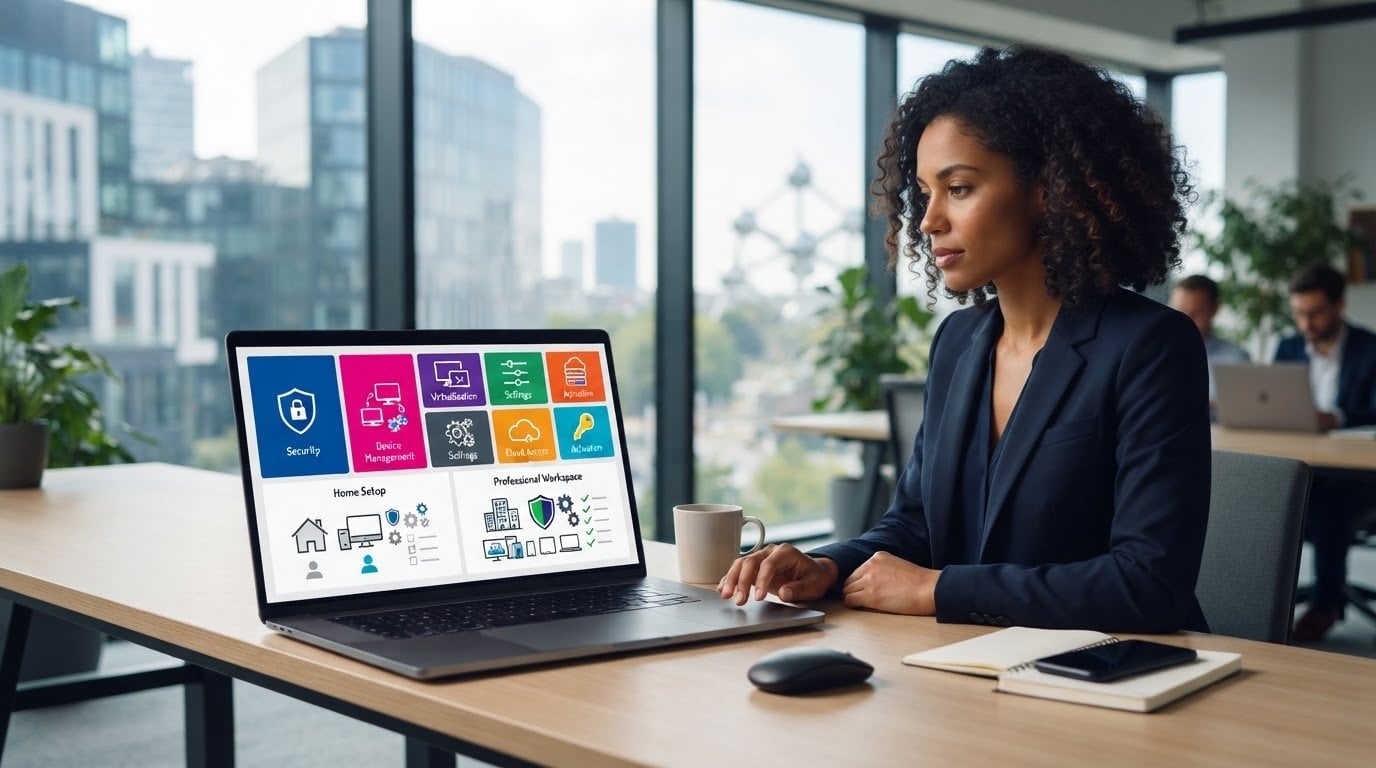
Windows 11 Pro does not make your computer faster. Yet windows 11 professional can be the right choice if you need specific features for your work or are looking for extra management options. Choosing Pro because it sounds more extensive? That is not always necessary.
Are you unsure whether to choose Windows 11 Home or Pro? First look at what you do with your PC and which features you really need. In this guide you will read what Pro adds, when Home is sufficient and which system requirements your device must meet. That way you can choose with purpose, without unnecessary features or a recurring subscription.
You will also read how to check whether your computer is suitable and how activation works. Note: according to the information in this article, you must activate a Windows 11 Pro license within 30 days. LicentiePromo states digital delivery by email within five minutes, an activation guarantee and a refund option. We list the points of attention, so that before purchase you know what you are choosing and help avoid activation problems.
Key Points
- Discover why Microsoft calls the edition Windows 11 Pro and for whom Windows 11 Professional can be a suitable choice.
- Match Pro features to your needs, such as additional security settings or device management.
- Compare Home and Pro based on your usage, so you don't choose features you don't need.
- Check the system requirements and verify whether your device is suitable. Then follow the activation steps.
- Before purchasing, check the product name, license terms, and delivery information. LicentiePromo is an independent reseller, not a Microsoft partner.
What does Windows 11 Professional mean and who is Pro intended for?
What exactly is Windows 11 Professional? Microsoft uses the product name Windows 11 Pro. So it is not two separate versions: Windows 11 Professional is a designation often used for the Pro edition.
In short: Windows 11 Pro is an edition of Windows 11 with features that can be especially useful for additional security settings, device management and specific work needs.
What is the difference between Windows 11 Professional and Windows 11 Pro?
Those searching for windows 11 professional usually end up with information about Windows 11 Pro. Use that product name when comparing editions or checking a license. This way you avoid confusion with a supposed separate Professional version. The Windows 11 versions also provide a broader overview of editions and releases.
Who might benefit from the Pro edition?
The best choice depends on what you do with your device and which features you need. Pro is not automatically the right edition for everyone.
- Home use: do you mainly use your PC for browsing, managing your administration, and relaxing? Then you may not need Pro features. If you want to use your PC as a host for external connections, Remote Desktop may be relevant.
- Self-employed: if you work with sensitive files on your PC, BitLocker for disk encryption may be of interest. If you regularly test software in a shielded environment, check whether Windows Sandbox suits your way of working.
- Small businesses: do you manage devices or settings within a company network? Then Group Policy and connection to a company network may be relevant. Which features are usable depends on the setup and way of working.
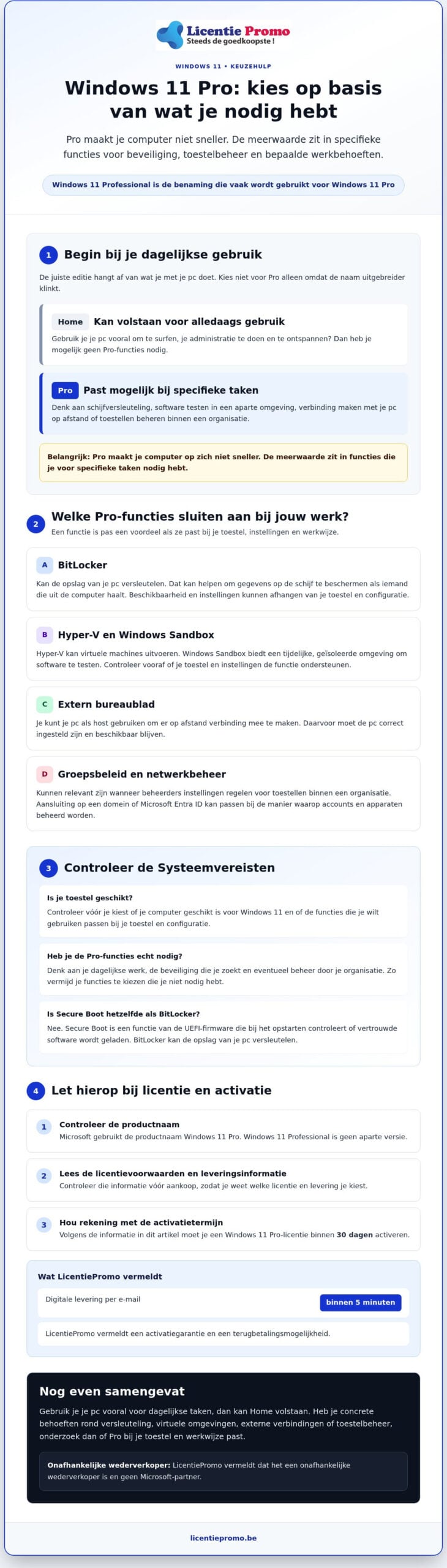
Pro does not make your computer faster in itself. The added value lies in features you need for specific tasks. First think about your daily work, the security you are looking for and possibly management by your organization. Then specifically assess the differences with Home.
This guide helps you choose and recognize points of attention for licensing and activation. It does not replace an installation guide. If you want to Windows 11 Pro install or activate, check the correct steps and conditions for your device and license.
Which features of Windows 11 Pro are relevant for your use?
Windows 11 Pro mainly adds options for security, management, and virtual environments. Which of these are useful to you depends on your work and your PC's settings. Microsoft provides an overview of the official Windows 11 Pro features. For a specific feature, also check whether it suits your device and configuration.
Which Pro features can be useful for work or management?
A feature is only an advantage if it aligns with what you actually do. Consider, for example, these possibilities:
- Remote Desktop: you can use the PC as a host to connect to it remotely. This can be useful if your work computer remains at a different location. The PC must be configured correctly for this and remain available.
- Hyper-V and Windows Sandbox: with Hyper-V you can run virtual machines. Windows Sandbox provides a temporary, isolated environment to test software. This can be relevant if you want to try out programs without immediately using them in your regular work environment. Check in advance whether your device and settings support the feature.
- Group Policy and network management: administrators can manage settings for devices that operate within an organization. Joining a domain or Microsoft Entra ID may fit the way a company or school manages accounts and devices.
Windows 11 Pro lets you run a virtual machine with Hyper-V, which can be useful for using a separate software environment. That is a concrete example, but in itself not a reason to choose Pro. If you do not manage any devices and do not use a virtual environment or remote connection, these options may add little for you.
What role do security and Secure Boot play?
BitLocker can encrypt a PC's storage. As a result, data on the disk is not simply readable if someone removes the disk from the computer. The available options and settings may depend on the device and the configuration. Secure Boot is something different: it is a function of the UEFI firmware that checks during startup whether trusted software is being loaded.
Firewall and network protection can be found in Windows Security. These features help monitor network traffic, but they do not guarantee that you are protected against every threat. Use them as part of a broader approach, with attention to updates and safe behavior.
Make your choice based on concrete needs, not on a long list of features. If you want to view the product information, read the details of the Windows 11 Pro license before you decide.
Windows 11 Home or Pro: how do you determine which edition suits you?
Don't choose based on the name alone. Look at what you do with your PC and whether you need Pro's extra management or security features. Windows 11 Home may suffice for everyday use. Windows 11 Pro is worth considering if your work or device management requires features that Home does not offer.
Quick comparison
- Windows 11 Home: may suit browsing, administration, video calling and relaxation. Do check whether you need any specific Pro features.
- Windows 11 Pro: may be relevant if, for example, you need BitLocker, Hyper-V, Group Policy, or the ability to use your PC as a host for remote connections. Check whether the feature suits your device and way of working.
When is Windows 11 Home sufficient?
Do you mainly use your computer for ordinary tasks and do you not manage devices for an organization? Then you may not need Pro features. That does not automatically apply to every home user: at home too, you may need a specific feature for work, security or software testing. Therefore, compare your tasks with the current edition information. If necessary, view the product information of the Windows 11 Home license.
When is Windows 11 Pro worth considering?
Pro may be suitable if you have a concrete need for features for data encryption, virtual environments, remote access, or central management. First make a list of what you actually use. Then check the current availability and terms at Microsoft. The official page about Windows 11 Pro for Business helps you assess the features against your situation.
If you are looking for windows 11 professional, it usually concerns the Pro edition. You do not have to choose it because it sounds more extensive. Choose it only if the features offer a clear advantage for your work or device. If you then want to view the license details, read the information about the Windows 11 Pro license before you decide.
Check the System Requirements and go through the activation process step by step
First check whether you have the right product and a suitable device. This prevents you from choosing a license that does not match your Windows edition or expectations.
- Check the edition: find out which Windows version is on your PC and note whether you are using Windows 11 Home or Pro.
- Check the system requirements: check the current requirements at Microsoft, including processor, memory, storage, firmware, and security support.
- Check your device: use Microsoft PC Health Check to see if your current computer is suitable for Windows 11.
- Read the license terms: before using the license, check the exact product name, edition, activation instructions, and term.
What do you check before installing Windows 11 Pro?
The minimum requirements for Windows 11 include a compatible 64-bit processor of at least 1 GHz with two or more cores, at least 4 GB RAM and 64 GB of available storage space. The device also needs UEFI firmware that supports Secure Boot, TPM 2.0 and a graphics card that supports DirectX 12 or higher with a WDDM 2.0 driver. Also check the display requirements and the most recent information from Microsoft. Meeting the minimum requirements does not automatically mean that every individual Pro feature is available on your device.
Before you begin, have your current Windows edition, license details, and product instructions at hand. This will help you follow the steps and error messages correctly. For the compatibility check, use Microsoft's information, not just a general product description.
How does the activation process work?
Follow the instructions that come with your license. When upgrading from Windows 11 Home to Pro, you can enter the product key via Windows activation settings.
- Keep your order confirmation and check your email for the product key and accompanying instructions.
- Open in Windows System > Activation and choose the option to change the product key.
- Enter the code as stated in the instructions you received and confirm.
- Then check on the same activation page whether Windows shows the Pro edition and activation status.
LicentiePromo states that you will receive the license digitally by email within five minutes after payment. Activate it within 30 days. Not working? Check the terms of the activation guarantee and, if you have questions, contact LicentiePromo's customer service.
Choosing Windows 11 Pro? Check license and delivery before purchase
Before you order, take the time to read the product details and terms. That way you know which edition you are choosing, how to activate the code, and what to expect from delivery.
How do you recognize clear license and warranty terms?
Check these points in advance:
- Product name and edition: check whether the description clearly states Windows 11 Pro.
- Activation conditions: read how and when you need to use the code. According to the information in this article, you must activate the license within 30 days.
- Warranty and refund: LicentiePromo states an activation guarantee and a refund option. Read the current terms to know exactly what they entail.
- Subscription: the Windows 11 Pro license is offered as a digital purchase without a subscription. So you do not pay a recurring subscription fee for this license.
LicentiePromo is an independent reseller, not a Microsoft partner. The company states that it sells legal licenses. Before you order, check the product information and the terms for activation and refund yourself.
What can you expect after purchasing from LicentiePromo?
LicentiePromo states that you will receive the license digitally by email after payment, within five minutes. Before you order, also check the current product and order terms. After purchase, keep your order confirmation and activation instructions. You will need them when you enter the product code.
Does Windows 11 Pro suit your device and usage? View the Windows 11 Pro license and check the product conditions before you order.
Choose Pro with confidence, and activate on time
The best edition depends on your usage. If you don't need specific Pro features, Home may suffice. If you're looking for extra options for security, remote desktop or device management, check whether Pro suits your device and way of working. The name windows 11 professional usually refers to Windows 11 Pro.
Before purchasing, check the product name, activation terms and warranty. Activate your license within 30 days. LicentiePromo states an activation guarantee and refund option, and digital delivery by email within five minutes. Check the current product and order terms so you know what applies to your purchase.
Ready to review the product details? View the Windows 11 Pro license and check the product terms. Only choose when the features and terms match what you need.
Frequently asked questions about Windows 11 Pro
Is Windows 11 Professional the same as Windows 11 Pro?
Yes. Microsoft uses the product name Windows 11 Pro; “Windows 11 Professional” is a designation that often refers to the same edition. So it is not about two separate versions. If you search for windows 11 professional, check whether the product description clearly mentions Windows 11 Pro . That way you know which edition you are choosing and you can align the license terms and activation steps with the right product.
What is the difference between Windows 11 Home and Pro?
Windows 11 Pro offers, in addition to the standard Windows features, extra options for security, management and virtual environments, among other things. Think of BitLocker for disk encryption, Group Policy for device management and Hyper-V for virtual machines. Home may suffice if you do not need those features. Check the current Microsoft information for the precise differences and see which features suit your device and usage.
Do I need Windows 11 Pro for home use?
No, not automatically. For browsing, administration, video calling and relaxation, Windows 11 Home may suffice. Pro can be useful at home if, for example, you want to use your PC as a host for an external connection, encrypt data with BitLocker or test software in a virtual environment. Look at your concrete needs. The Pro edition does not make your computer faster in itself.
Can I upgrade Windows 11 Home to Windows 11 Pro?
Yes. You can upgrade an existing Windows 11 Home installation to Pro by entering a valid Pro product key in Windows. Normally, you do not need to reinstall Windows to do this. Open Settings, go to System and then Activation. Choose the option to change the product key and follow the instructions. Afterwards, check whether Windows shows the Pro edition and the activation status.
What are the system requirements for Windows 11 Pro?
The standard system requirements for Windows 11 include a compatible 64-bit processor of at least 1 GHz with two or more cores, at least 4 GB RAM and 64 GB available storage space. Your device also needs UEFI firmware with support for Secure Boot, TPM 2.0 and a DirectX 12-compatible graphics card with a WDDM 2.0 driver. Check the current Microsoft requirements and use PC Health Check to verify your device.
How do you activate a Windows 11 Pro license?
First, save your order confirmation and read the product instructions. Then open Settings > System > Activation, choose the option to change a product key, and enter the code you received. Follow the on-screen instructions and then check the activation status. According to the information in this article, you must activate the license within 30 days. If you have any questions, you can consult the terms and conditions or contact customer service.
Is a cheap Windows 11 Pro license legal?
A low price alone does not tell you whether a license is legal. Therefore, before purchasing, check the product name, edition, license terms and information about activation and warranty. LicentiePromo states that it sells legal Microsoft licenses and offers an activation guarantee and a refund option. Read the current terms carefully. LicentiePromo is an independent reseller and not a Microsoft partner.